LawnTrail

For lawn care businesses

Your lawn care business, organized from your phone.

Today’s route on a map, arrival and departure with a swipe, and what you’ve been paid and what you’re owed, in one app. Built to use from the truck, between one yard and the next. In English and Spanish.

LawnTrail opens: below the sign-in form, tap “Create an account”.

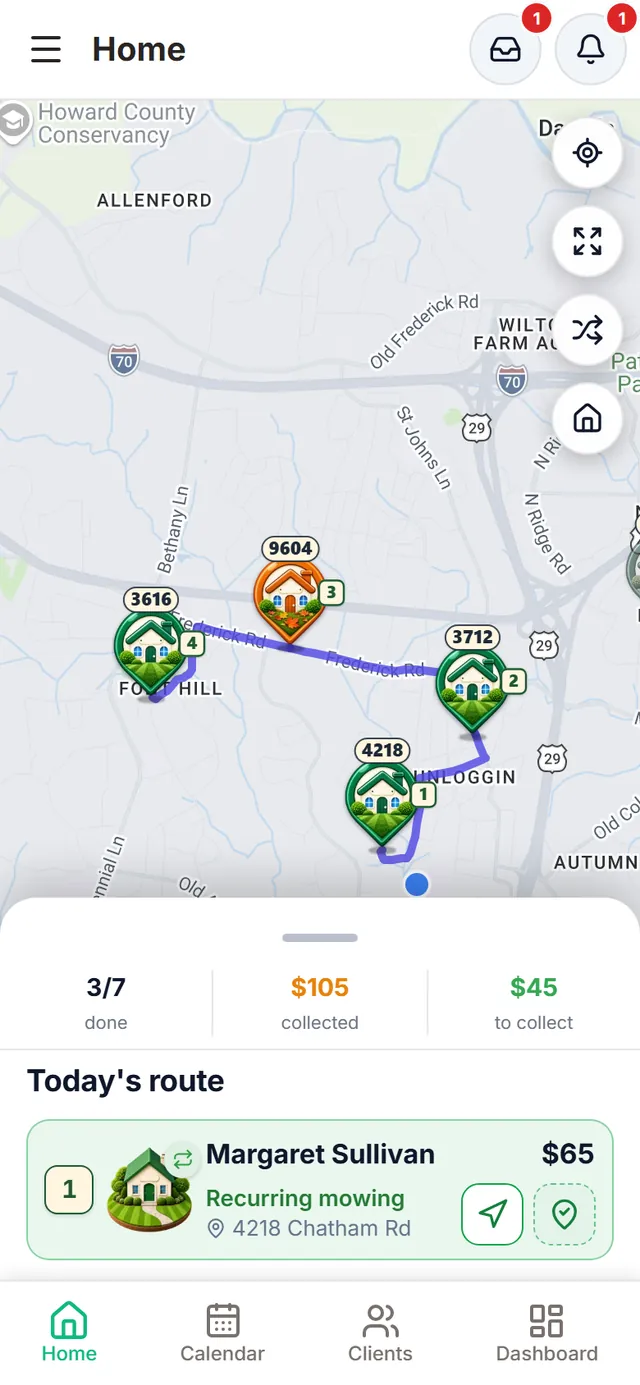
LawnTrail Home: the map with today’s route, numbered houses and dimmed, checked houses for finished jobs; below, 3 of 7 done, $105 collected, $45 to collect and the next stop, Margaret Sullivan, number 1

How it works

Four steps you repeat every week. LawnTrail makes sure none of them slips.

  1. Organize clients and jobs

    Every client with their address, preferred day, how often they’re serviced and what you charge. One-off jobs start with an estimate.

  2. Plan the week

    In the Calendar, “Smart” suggests which clients are due each day from their frequency. Confirm the day or the week, or add clients to a day by hand.

  3. Do the work on site

    Swipe when you arrive and when you leave. When you finish, confirm whether the client paid, and the house on the map dims.

  4. Track what’s paid and what’s owed

    Every payment lowers the client’s balance. Finances shows what came in, by which method, who owes you and what you spent.

Take a look inside LawnTrail

Screenshots of the app, with sample data. Pick a part, let them play or step through by hand, and zoom into any of them to see the detail.

The map and its houses

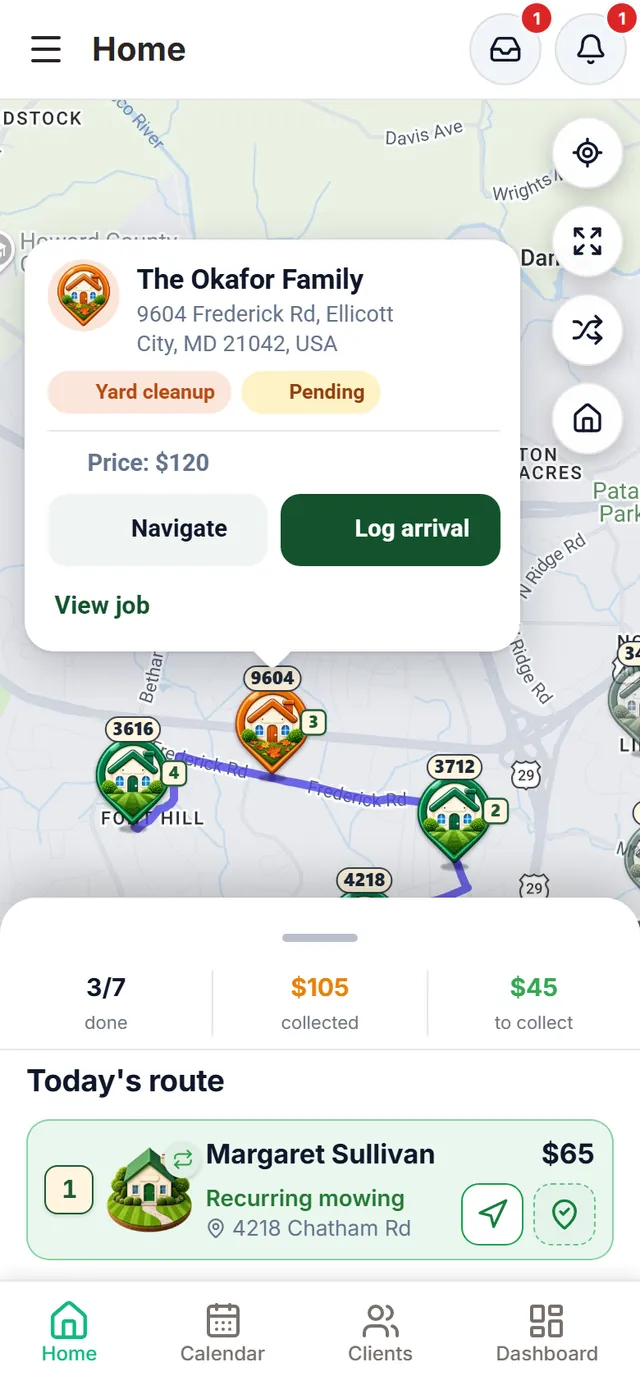
Each stop is a house with its number. Tap it to see the job, its price and the “Navigate” and “Log arrival” buttons. When you finish, the house dims: green check if it still owes, orange if it’s paid.

Screenshot 1 of 4

Home: the map with today’s route; pending houses with their stop number in a small square and finished houses dimmed with a green or orange check

Everything your business needs, in one place

Every screen solves something specific in the day-to-day of a lawn care business. All screenshots are from the app, with sample data.

Today’s route

Your whole day on a map

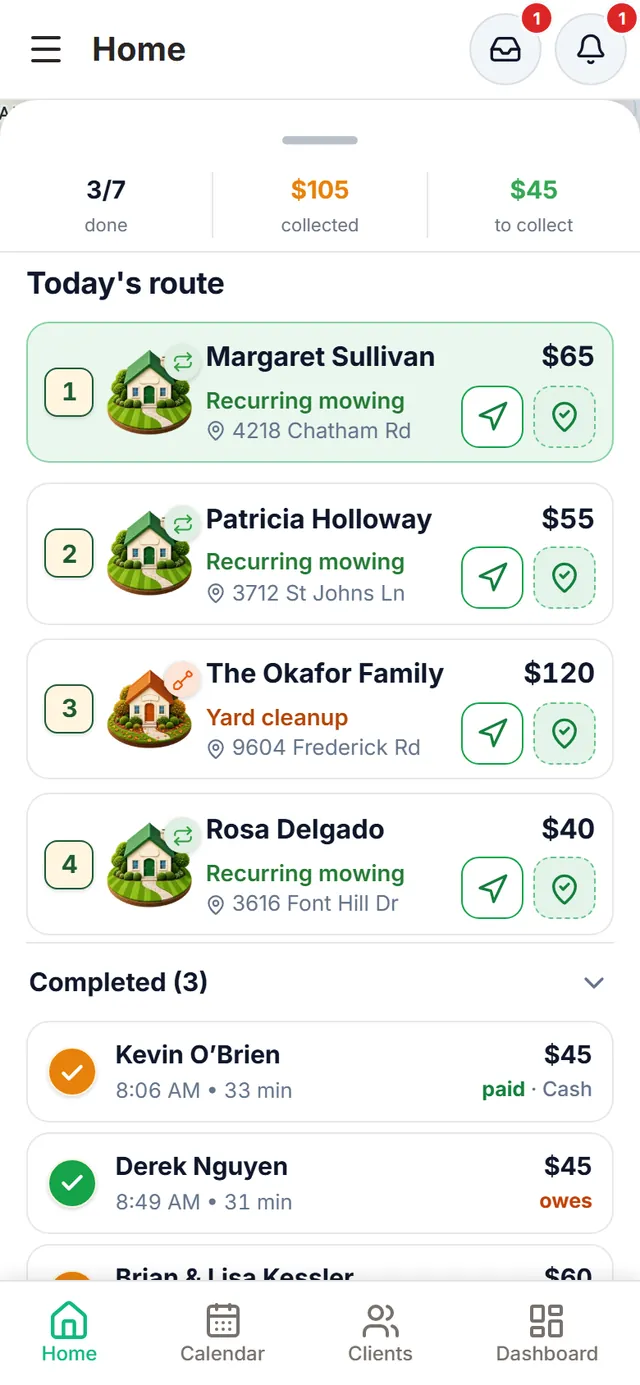
Open the app and see today’s jobs on the map and in the “Today’s route” list, in order. Each stop shows its number, service, amount and buttons to navigate and log your arrival.

  • Day bar: done, collected and to collect
  • Map buttons to see the whole route and optimize the order
  • Turn-by-turn directions to each address with Google Maps
  • Completed jobs with their time, duration and whether they paid
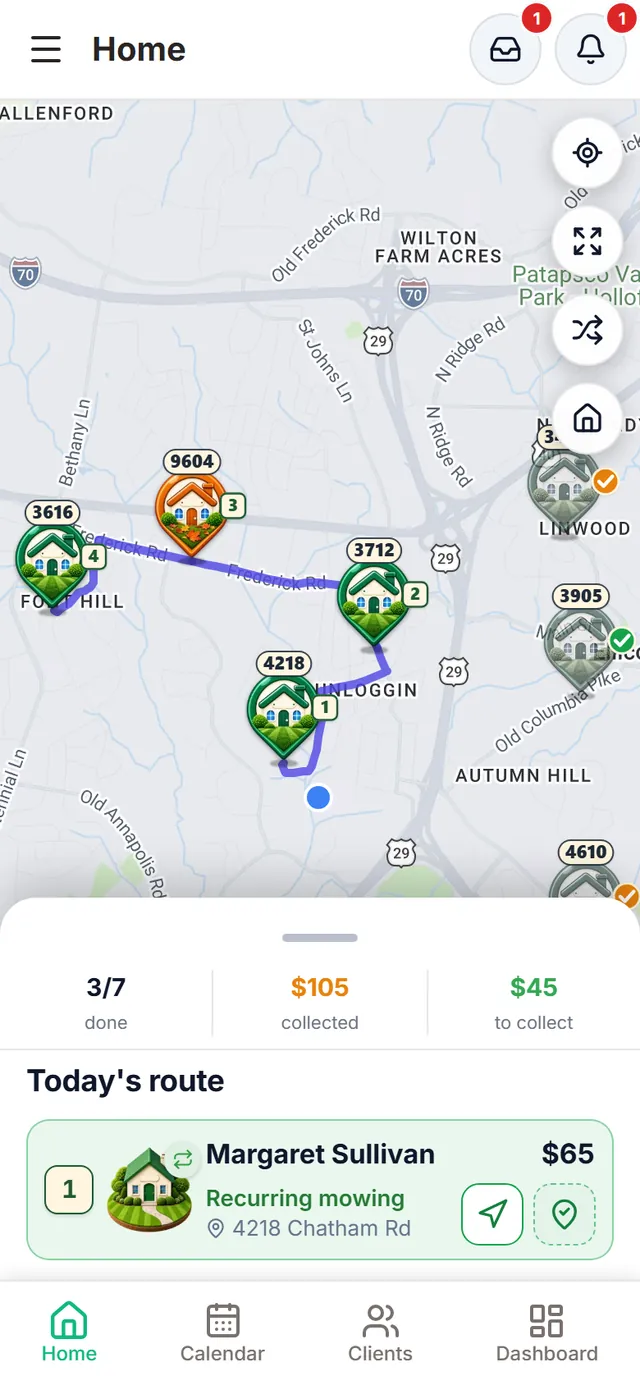
LawnTrail Home: the map with today’s route. Pending houses carry their stop number in a small square; finished ones are dimmed with a green check (owes) or an orange check (paid). Below, 3 of 7 done, $105 collected and $45 to collect, and the next stop: Margaret Sullivan
Today’s route: four numbered pending stops with service, address, amount and buttons to navigate and log arrival; below, the completed jobs with time, duration and whether they paid
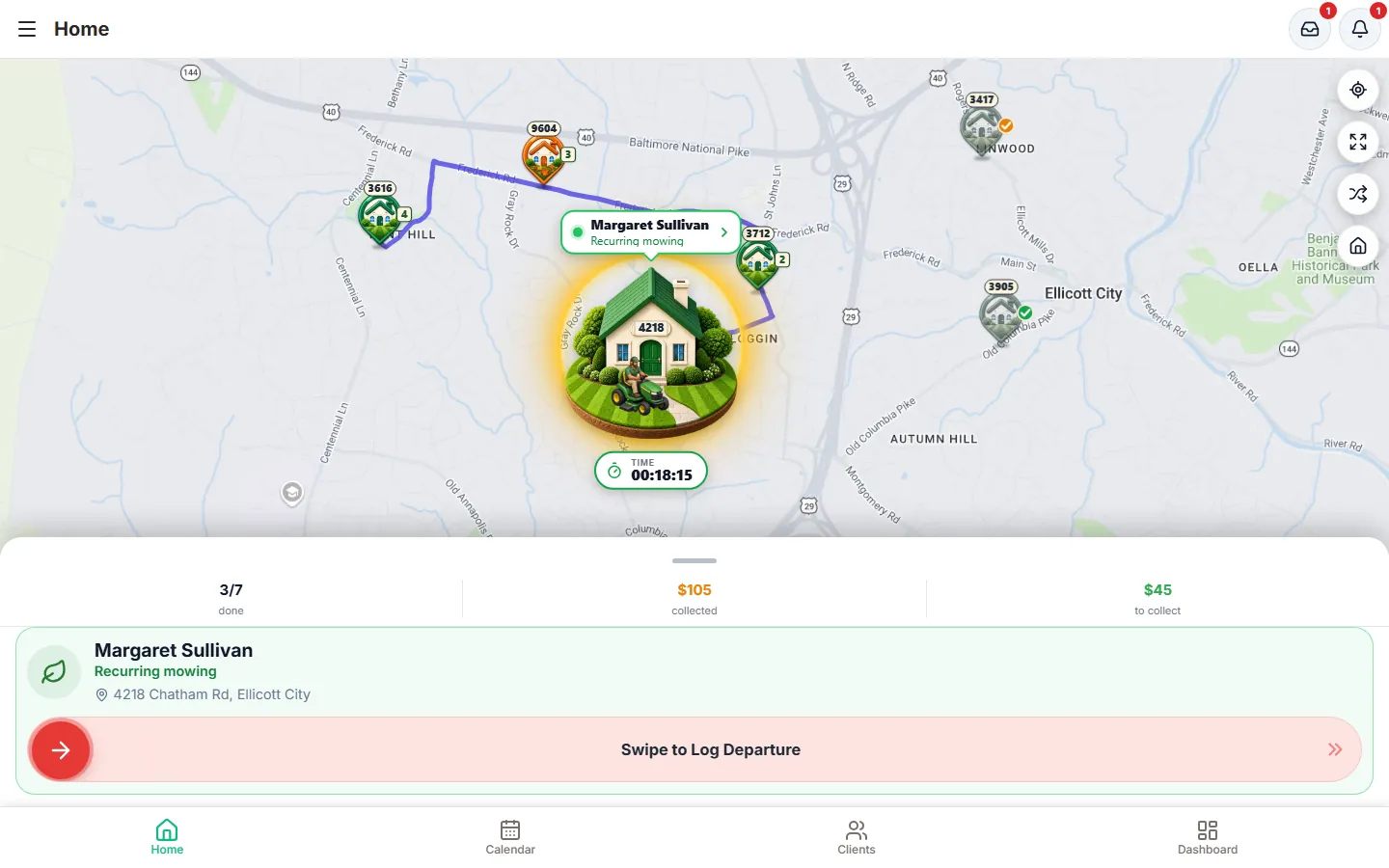
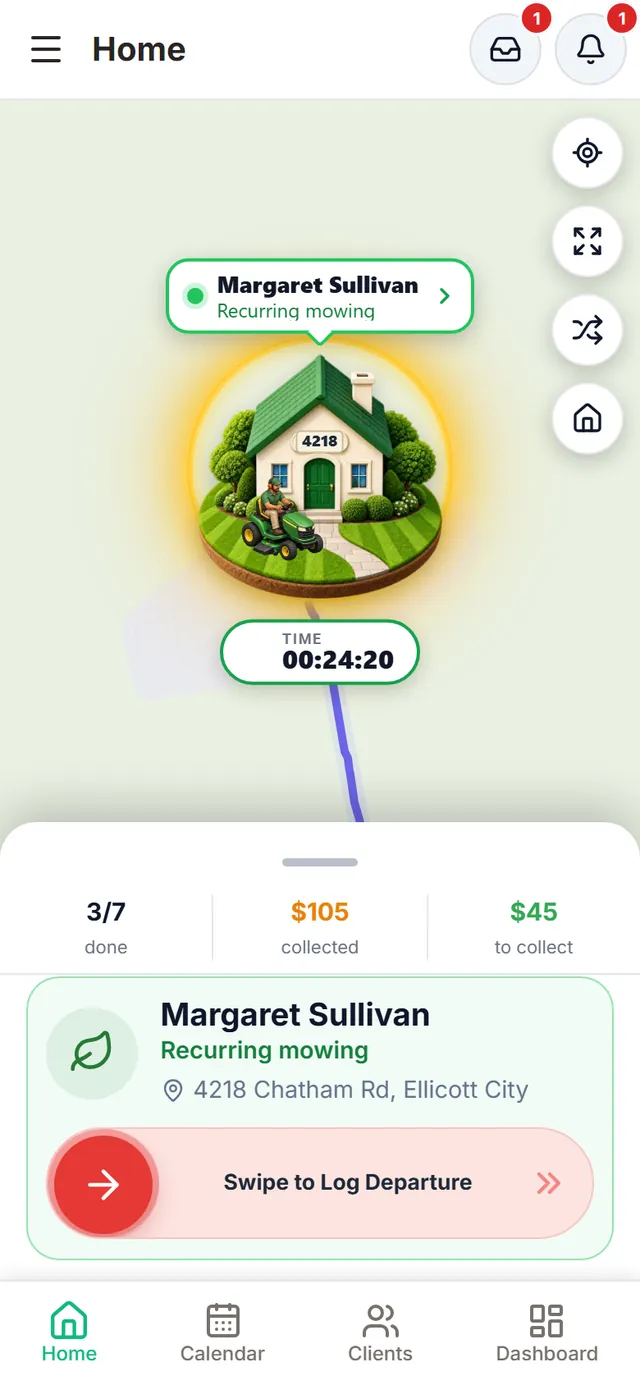
LawnTrail on a computer: today’s route on the map, with Margaret Sullivan’s job in progress, the timer and the swipe control to log departure

The houses on the map

At a glance: what’s left, what’s done and who paid
Each of today’s clients is a house on the map, with the street number on top. Tap it to see the job, its price and the buttons to navigate or log your arrival.

  • Pending: in color, with its stop number in a small square
  • In progress: the gardener at work and the timer
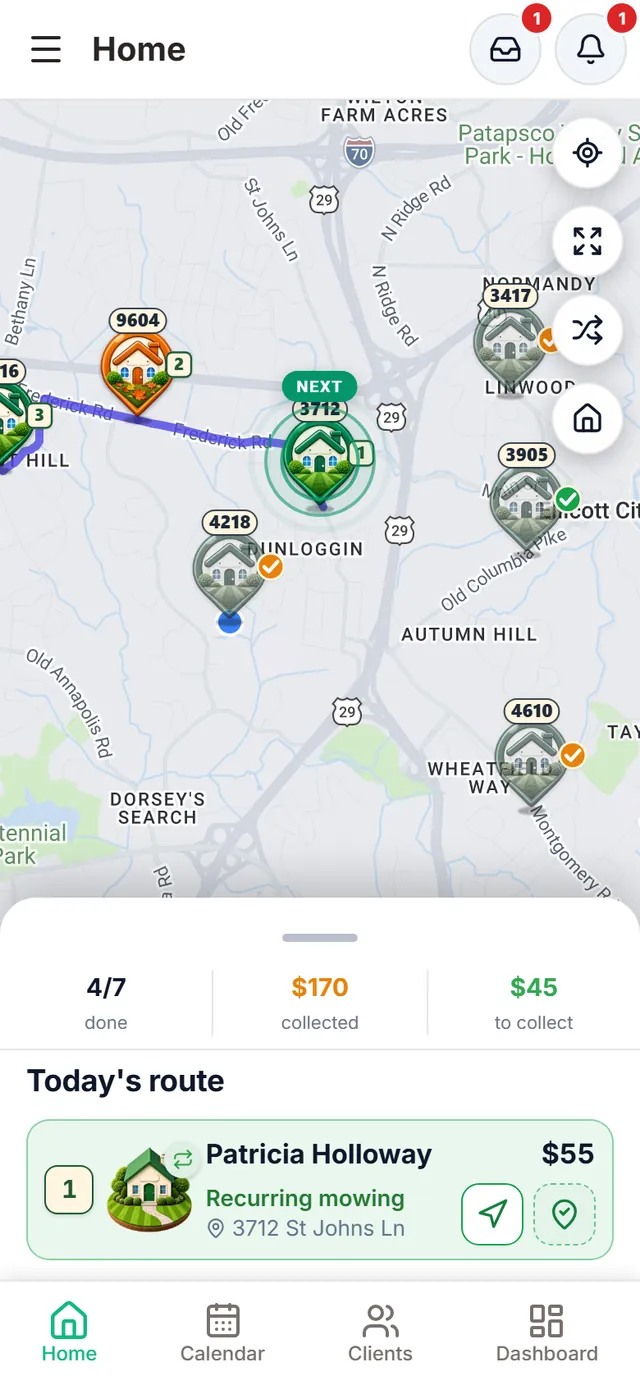
  • Finished: the house dims and gets a green check if that job isn’t paid yet, or an orange check if it’s paid
  • The house color depends on the service: you pick it in Settings → Houses & services
After finishing: house 4218 is dimmed with the orange paid check, the next stop is marked on the map and the bar moves to 4 of 7 done and $170 collected
Tapping a house: The Okafor Family, a pending yard cleanup, price $120 and the “Navigate” and “Log arrival” buttons

Nearby clients

Several houses on one street, one group

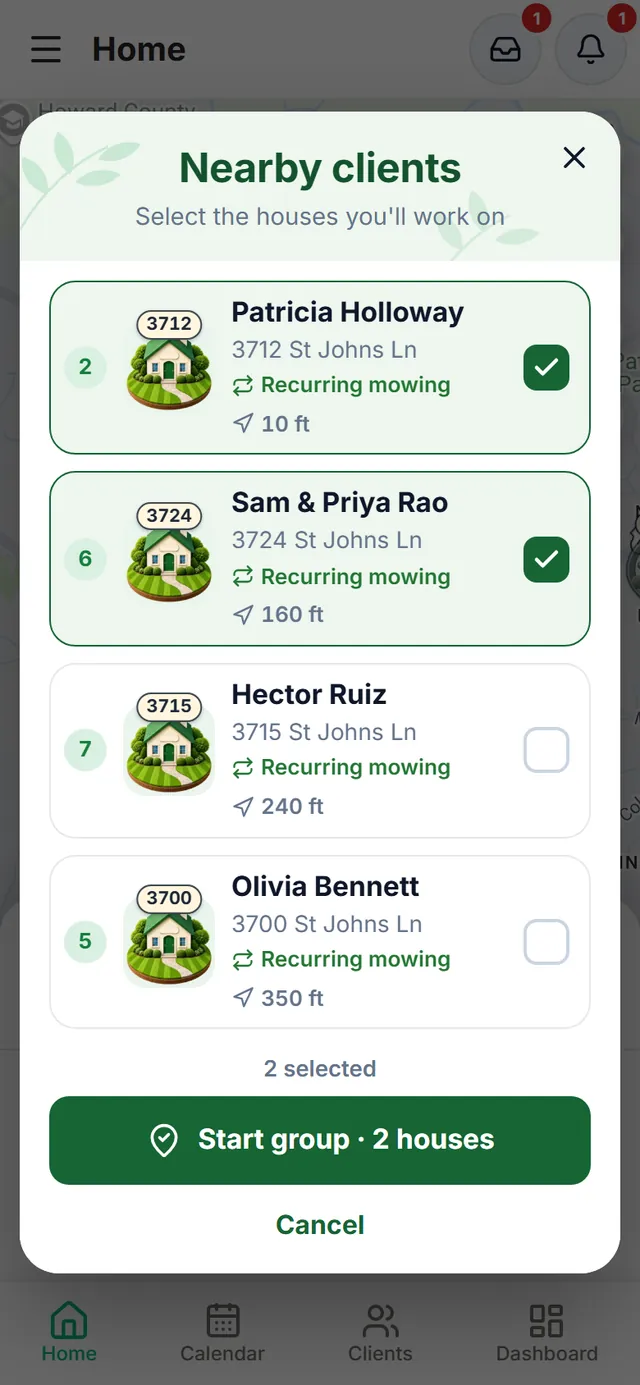
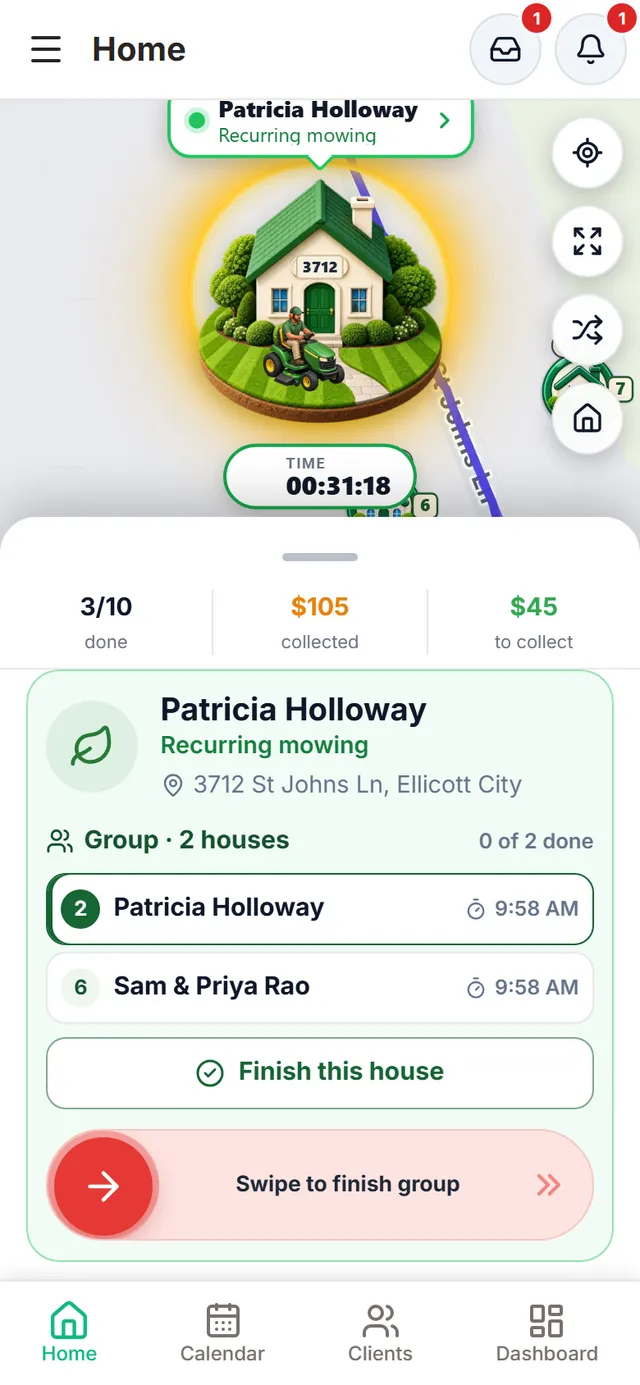
When you reach a street with several houses on your route, LawnTrail shows you the nearby clients so you can pick the ones you’ll work on. Start the group with a swipe and finish each house when it’s done.

  • Each house with its number, stop, service and distance
  • “Finish this house” records the time for each one
  • When you finish the group, you confirm each house’s payment, one by one
Nearby clients: four houses on the route on the same street, with number, stop, service and distance; two selected and the “Start group · 2 houses” button
Group in progress: the focused house with the gardener working and the timer, both houses in the group with their start time, “Finish this house” and “Swipe to finish group”

Arrival and time

Swipe in, swipe out

When you get to the house, the app offers to log your arrival with a swipe. The timer runs while you work and another swipe logs your departure. When you finish, if you turn it on in Settings (“Ask about payment when finishing”), you confirm whether the client paid: cash or transfer.

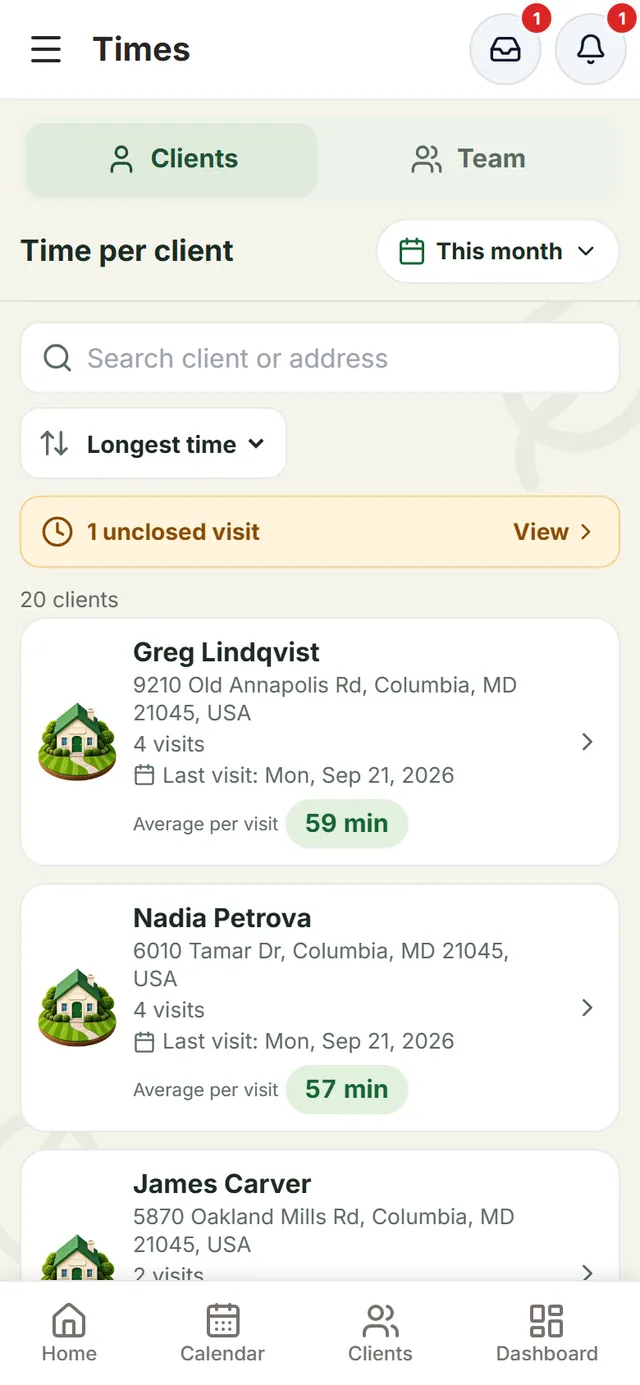
  • In the Time Log, Clients tab: the average per visit at each client, how many visits and the last one
  • Team tab: time on site, between visits and the recorded span for each person
  • By period: today, this week, this month or the dates you pick
  • Unclosed visits and records that don’t add up are flagged for you to review; nothing changes on its own
  • With weak signal, the arrival is saved and syncs when you’re back online
  • Your client sees arrival, departure and duration in their portal
Job in progress: Margaret Sullivan’s house with the animated gardener mowing, the timer past 24 minutes and the red “Swipe to Log Departure” control
Time Log, Clients tab for “This month”: “Time per client” with search, “Longest time” order, the “1 unclosed visit” notice and each client with their house, visits, last visit and average per visit (59 min, 57 min…)

Calendar and planning

The week builds itself, you decide

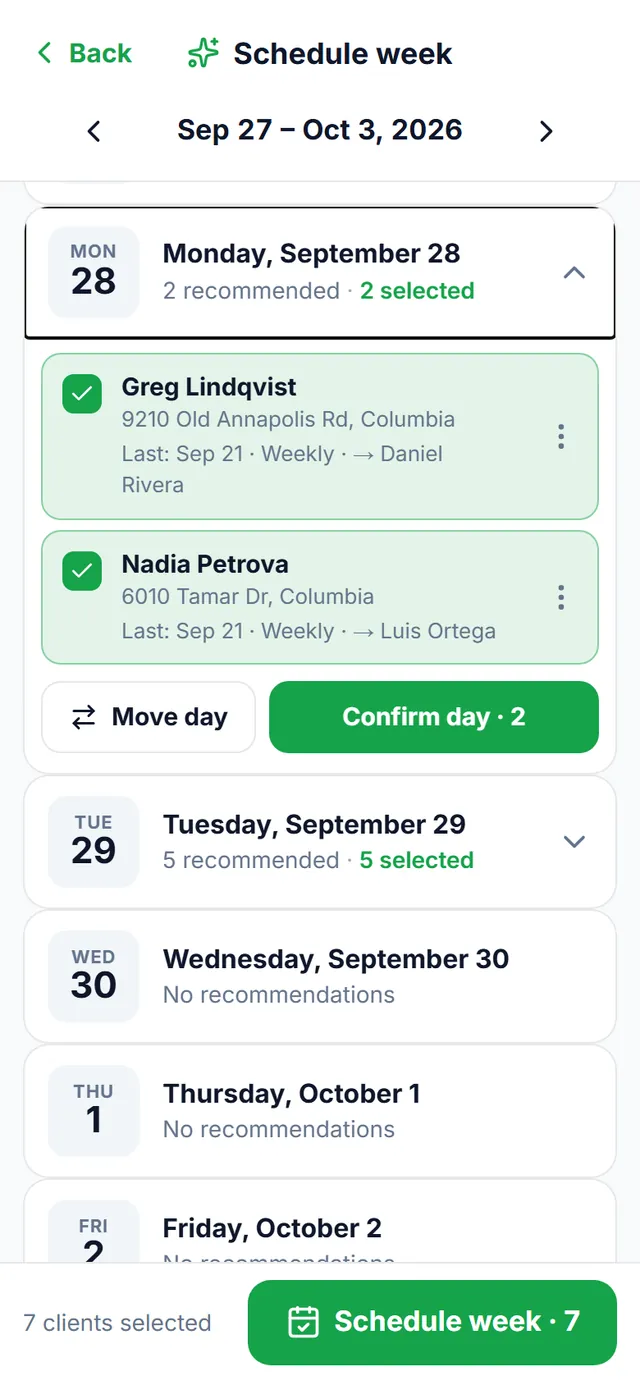
The Calendar shows the month, the week or the day. The “Smart” button opens “Schedule week”, which recommends which clients are due each day from their frequency and usual day: review it, move what you need and confirm the day or the week.

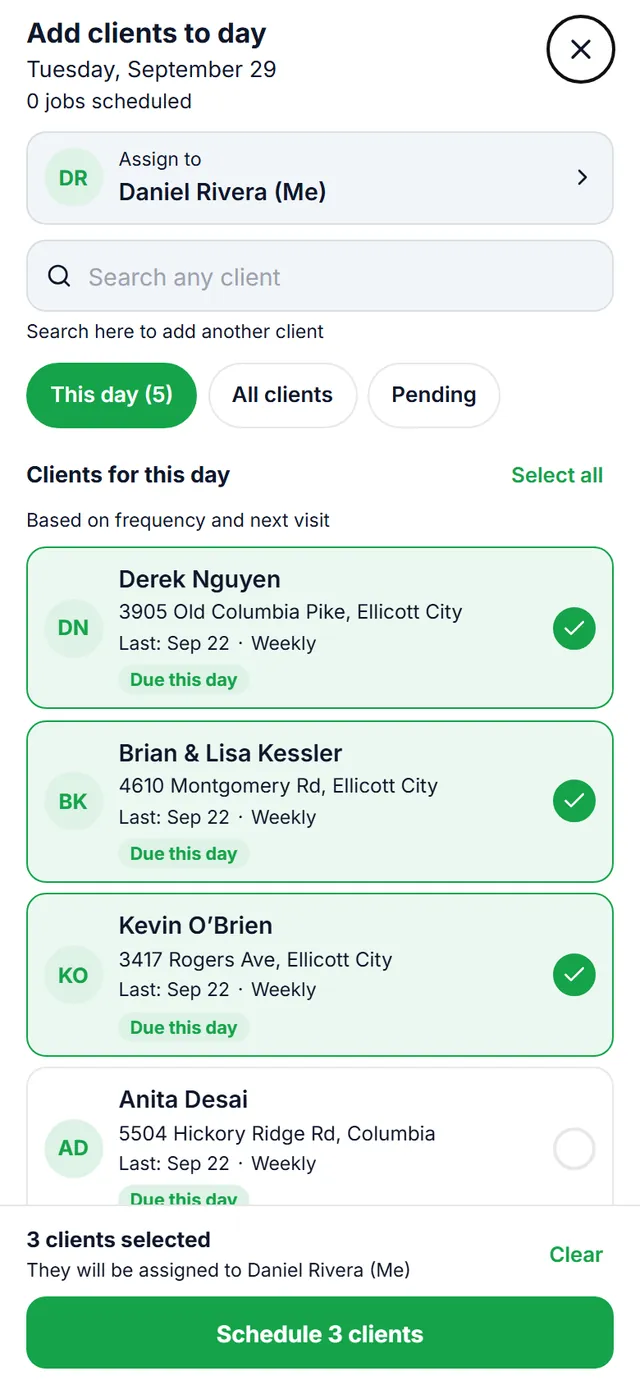
  • “Schedule Clients” opens “Add clients to day”: the clients due that day, or anyone else
  • “Schedule several” from the client list
  • Assign each day to a worker
  • Overdue clients are flagged
Schedule week: next week with the recommended clients for each day; Monday expanded with two clients selected and the “Confirm day” button
Add clients to day: Tuesday, September 29, assigned to Daniel Rivera, with the clients due that day and three selected to schedule

Import clients

Bring your clients from Excel, a PDF or a list

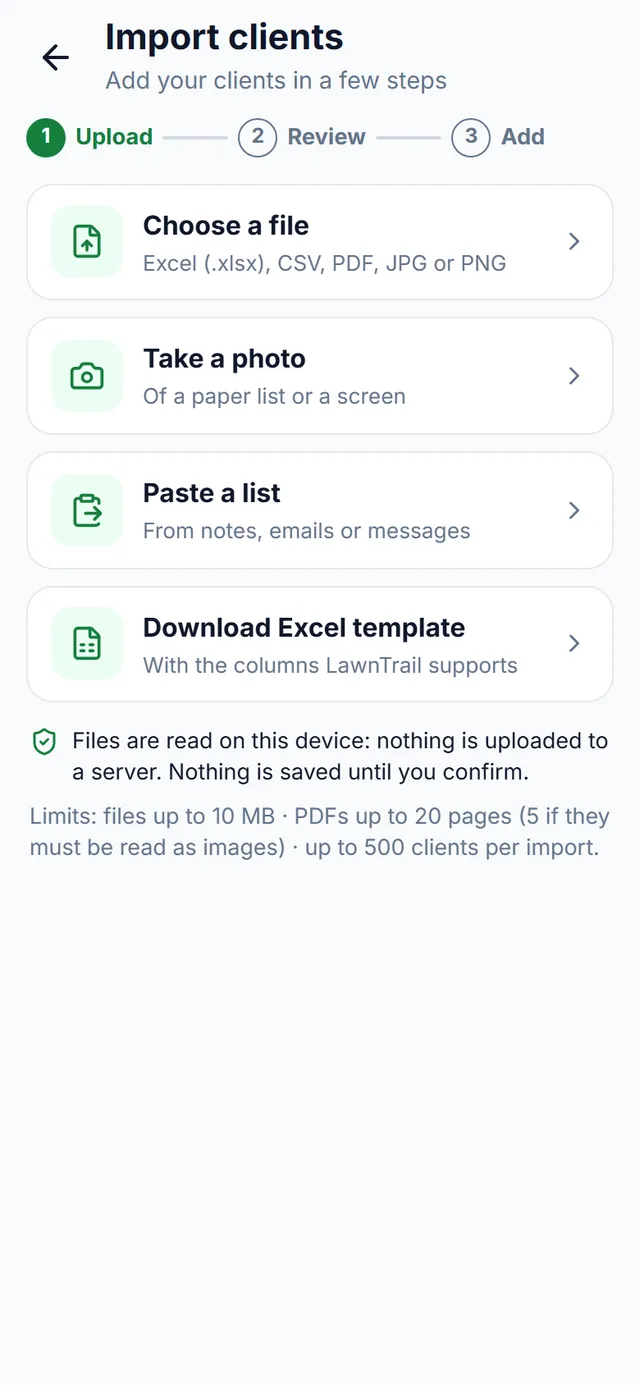
In Clients, the “Import” button opens “Import clients” in three steps: Upload, Review and Add. Choose an Excel (.xlsx), CSV, PDF, JPG or PNG file, take a photo of a list, paste a list or download the Excel template.

  • Everything is read on your phone: the file isn’t uploaded to any server
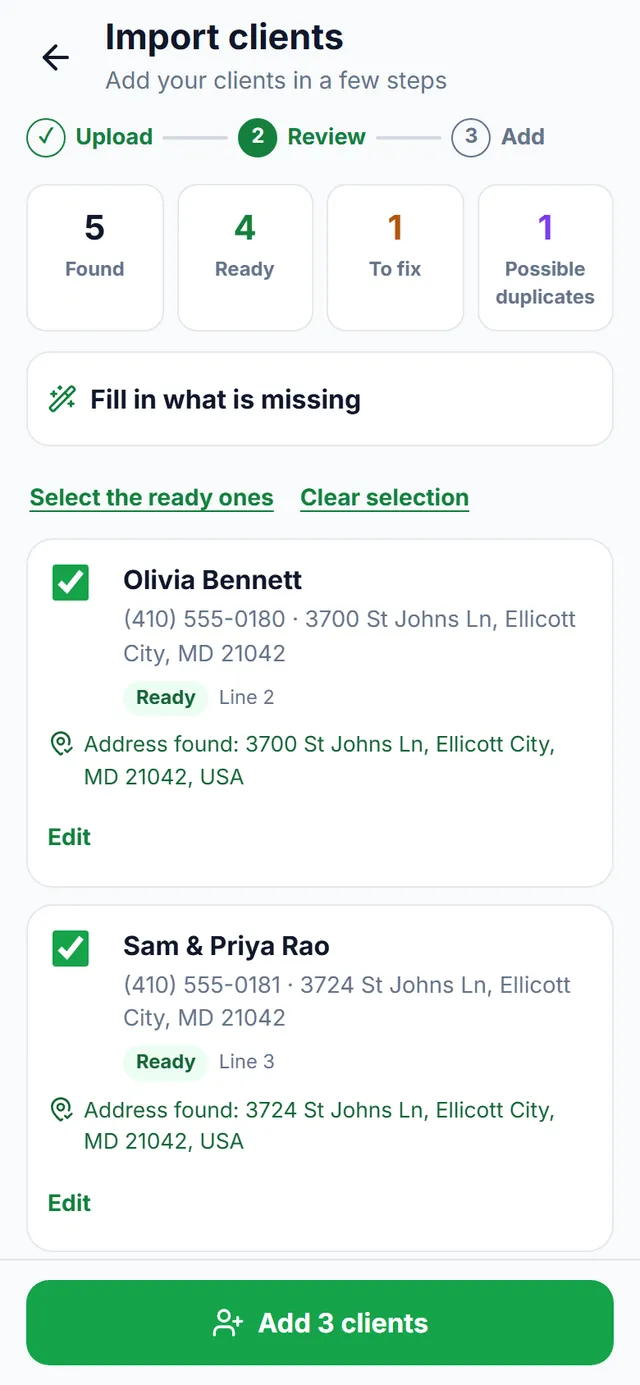
  • Nothing is saved until you review it: ready, to fix and possible duplicates
  • Possible duplicates are left unselected: never merged or overwritten
  • It only creates clients: no visits, charges, balances or payments
  • Anything read from a photo or a scanned PDF is flagged so you check every detail
Import clients, step 1 “Upload”: choose a file (Excel, CSV, PDF, JPG or PNG), take a photo, paste a list and download the Excel template; notice that files are read on the device, and limits
Import clients, step 2 “Review”: 5 found, 4 ready, 1 to fix and 1 possible duplicate, with the ready rows checked and the “Add 3 clients” button

Clients

Every client, with their history and balance

Each client record brings together their details, address, frequency and rate, what they owe and everything you’ve done for them and been paid.

  • Balance updated after every job and every payment
  • Service and payment history, with the balance before and after
  • Client notes and a note for the next service
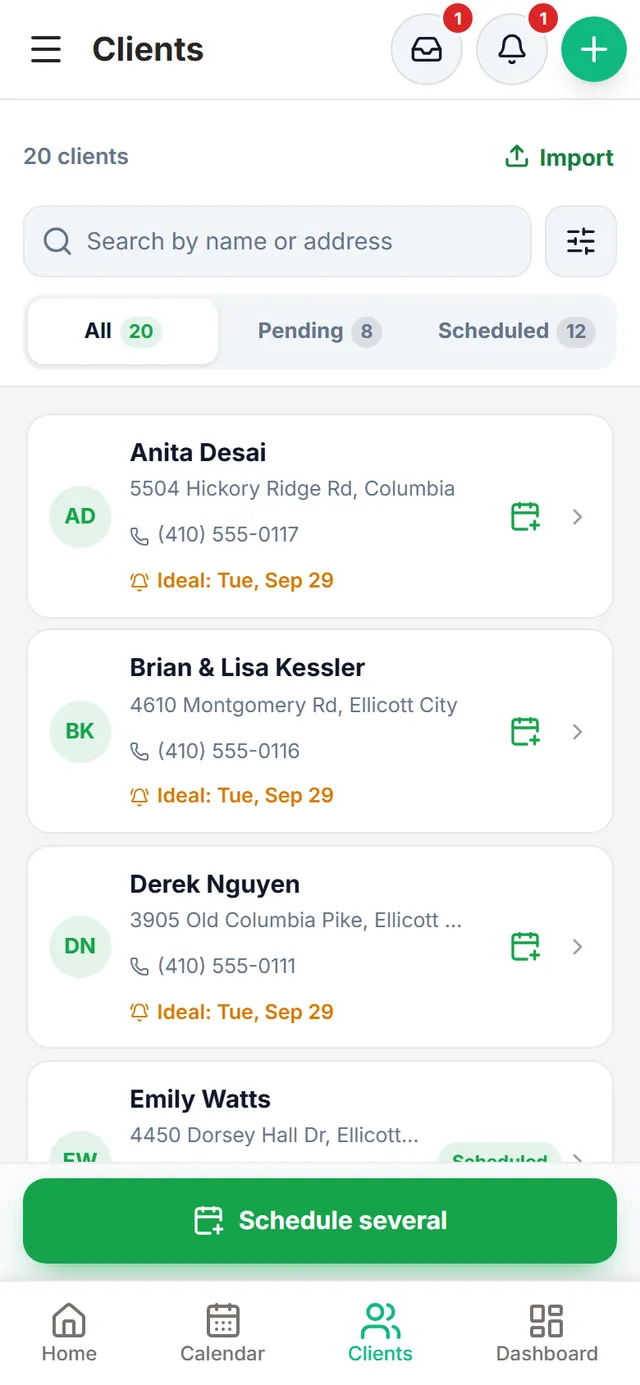
  • The list shows who still needs scheduling and their ideal day
Client list: 20 clients with address, phone and next ideal day, the “Import” button, All / Pending / Scheduled filters and the “Schedule several” button
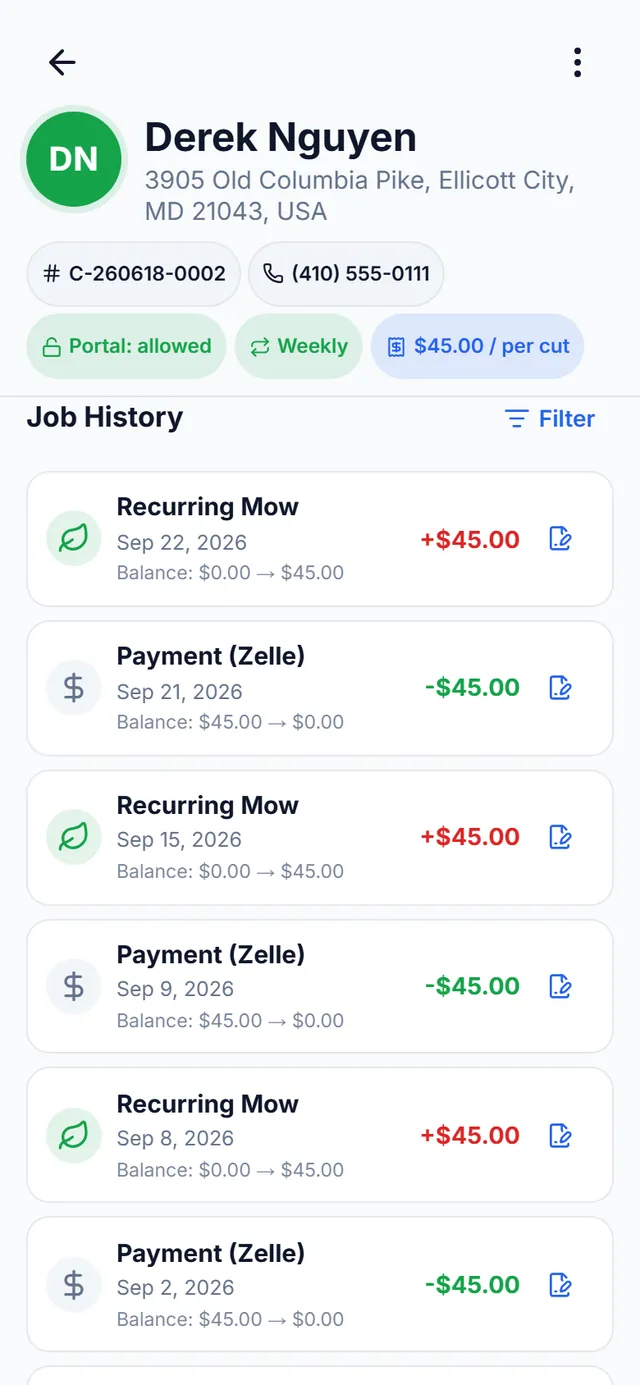
Derek Nguyen’s record, scrolled to Job History: portal allowed, weekly, $45.00 per cut, and each mow (+$45.00) and Zelle payment (−$45.00) with the balance before and after

Estimates and invoices

From estimate to invoice, no paperwork

For the jobs that aren’t the usual mow: write the estimate, the client approves it, you schedule it, complete it and invoice it. Every job shows where it stands.

  • Estimates, invoices and receipts as PDF, in English or Spanish
  • Internal cost and estimated profit on every estimate
  • Your client approves or rejects the estimate from their portal
  • A catalog with your services and prices
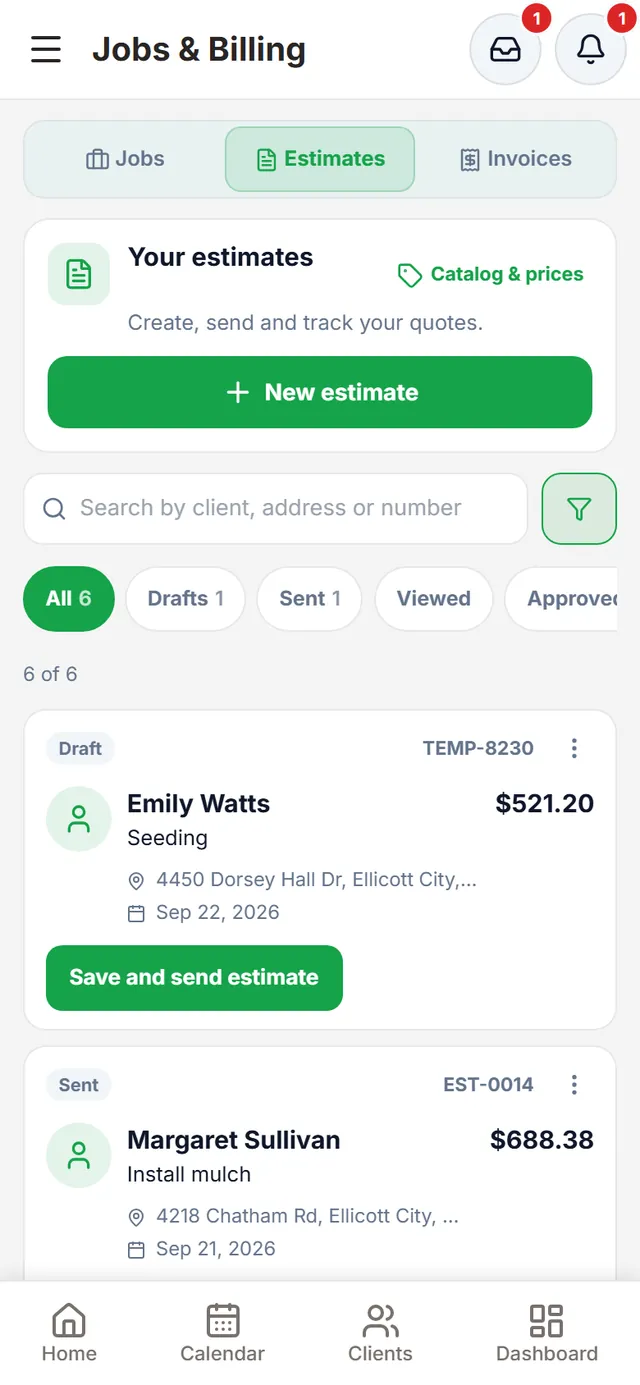
Jobs & Billing, Estimates tab: status filters and draft and sent estimates, with their number and total
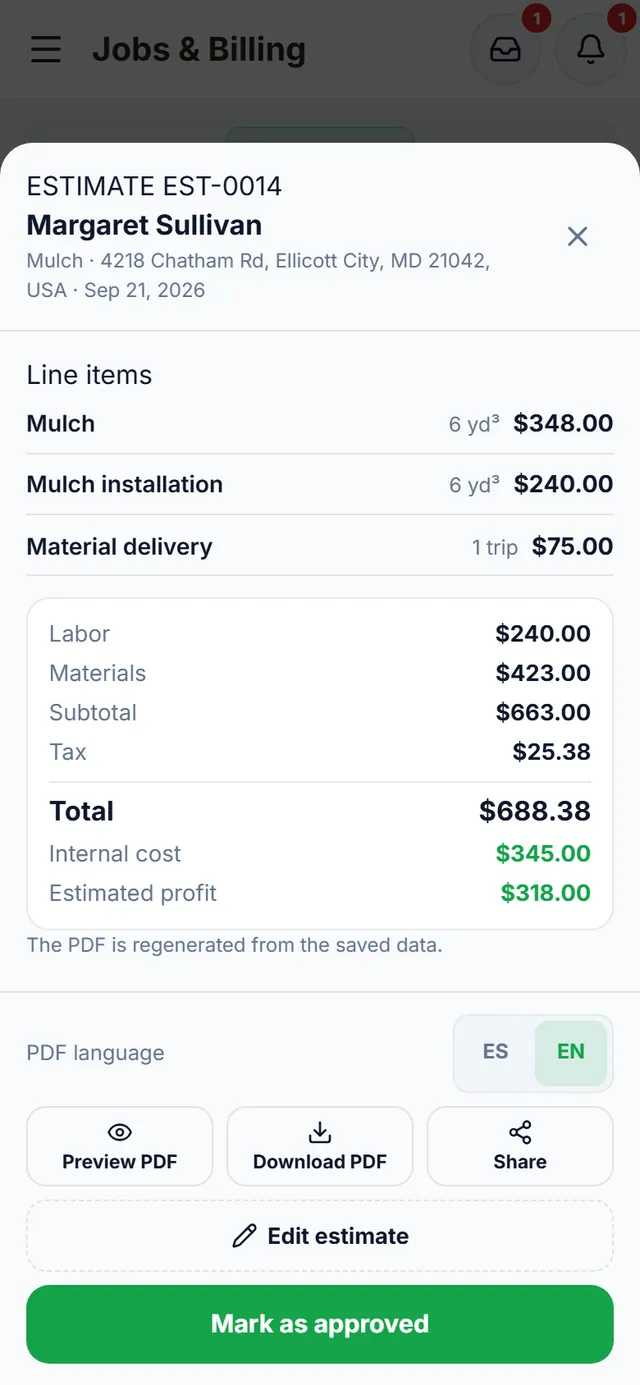
Estimate EST-0014 for Margaret Sullivan: line items, labor, materials, tax, a $688.38 total, internal cost, estimated profit and PDF buttons in English or Spanish

Finances

All your money in one place

One section with four tabs — Summary, Activity, Methods and Account — to see what came in this month, by which method, who owes you and where the money went.

  • Monthly summary: what came in, what’s outstanding and expenses
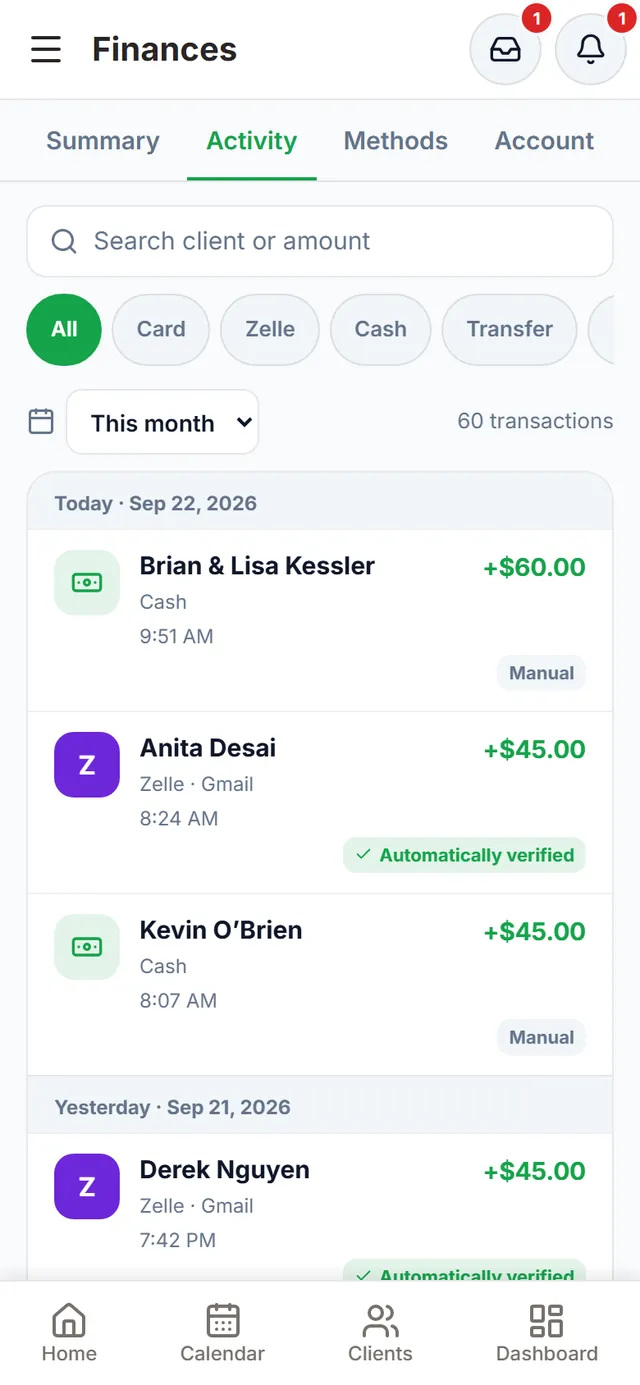
  • Activity: payments and expenses in one list, with search and filters by method and period
  • Methods: how much came in by Zelle, cash, transfer and card
  • Expenses by category and the list of clients who owe you
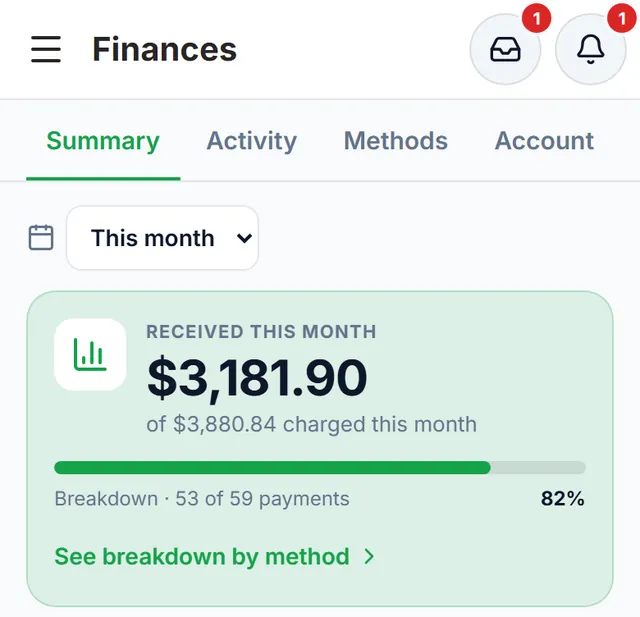
Finances, Summary tab: $3,181.90 received this month of $3,880.84 charged, with the month’s progress bar (82%)
Monthly summary: how much you received of what you charged.
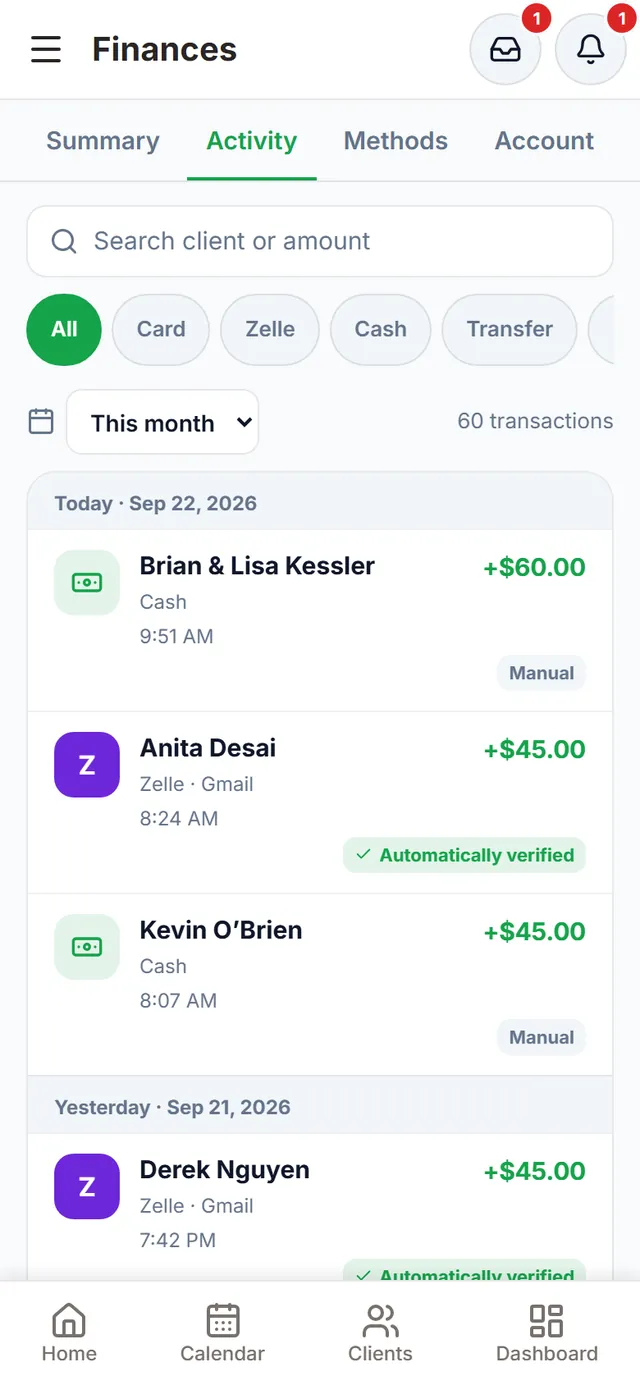
Finances, Activity tab: search, filters by method and period, and today’s and yesterday’s payments with client and method: detected Zelle ones tagged “Automatically verified” and hand-entered ones tagged “Manual”

Team

Every worker, with their own account and role

Invite each worker by email and they set their own password. Give them a role — Worker, Supervisor or Admin — and the app shows you what each one can do.

  • Worker role: assigned calendar, logging work time and completing jobs; no client administration, finances or rates
  • Workers see their route with no amounts or balances
  • Each member’s times, in the Time Log, Team tab
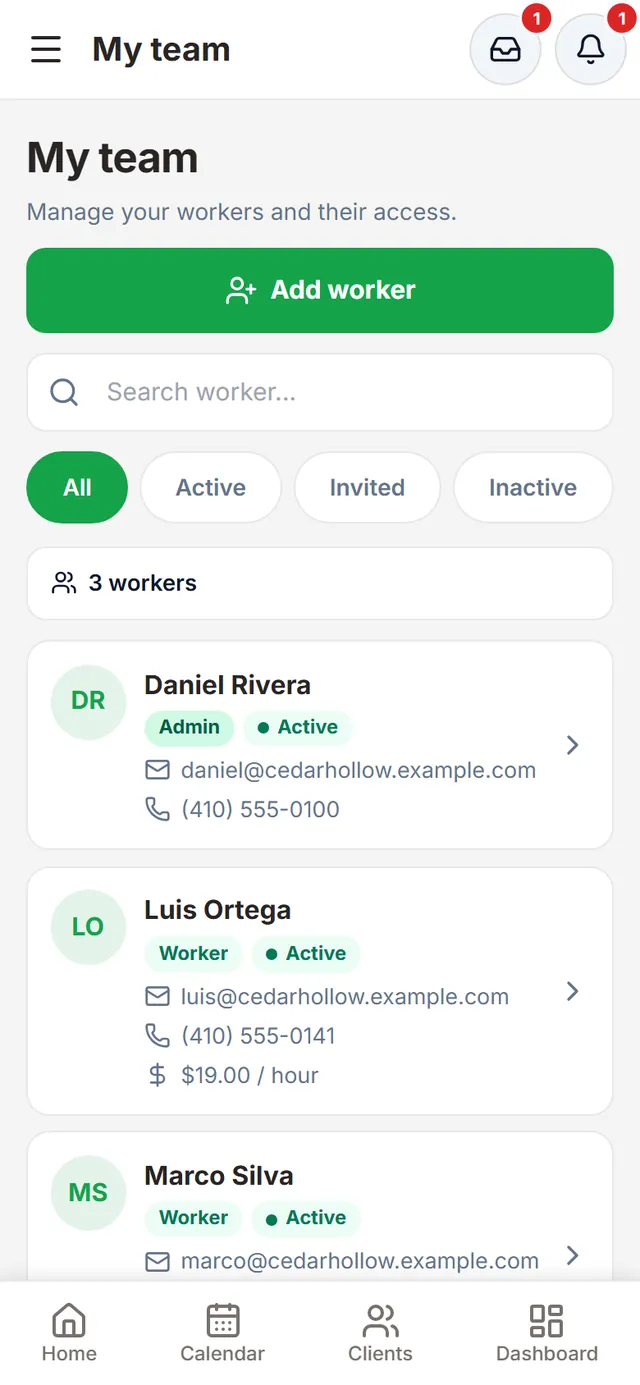
My team: Daniel Rivera (admin) and workers Luis Ortega and Marco Silva, active, with their contact details and rate
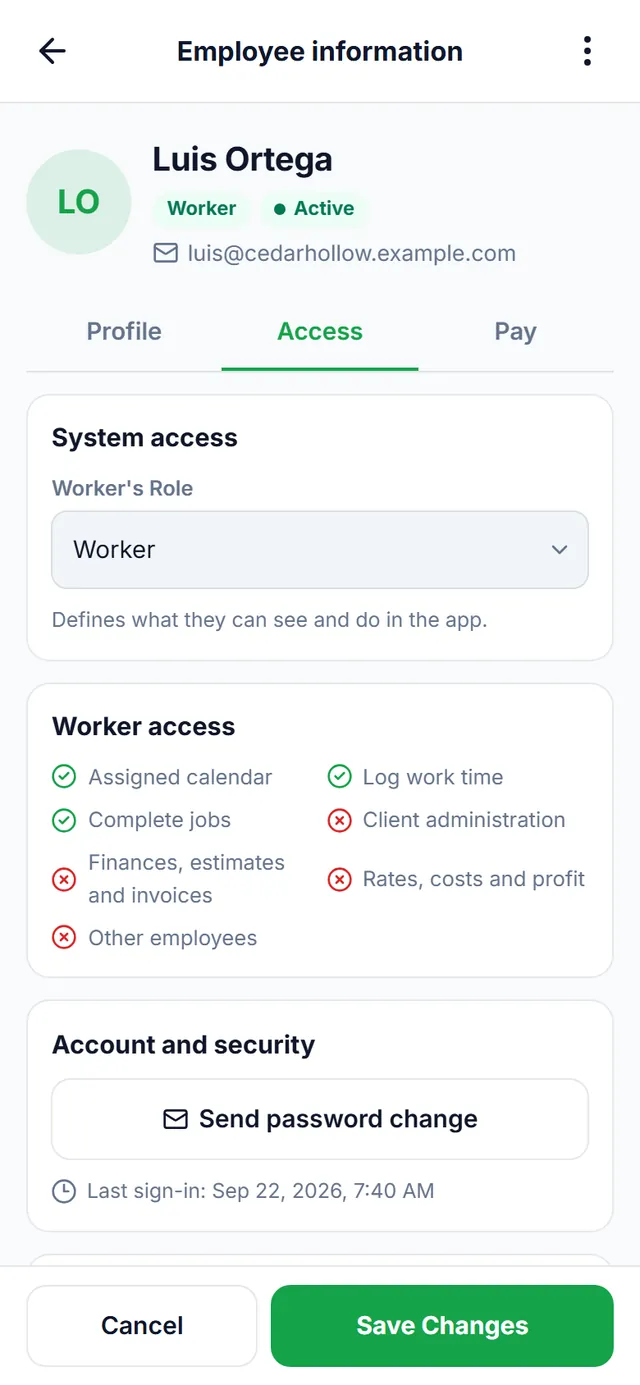
Employee information, Access tab: “Worker” role and what it includes — assigned calendar, log work time, complete jobs — and what it doesn’t

Notifications

Know what’s happening without looking for it

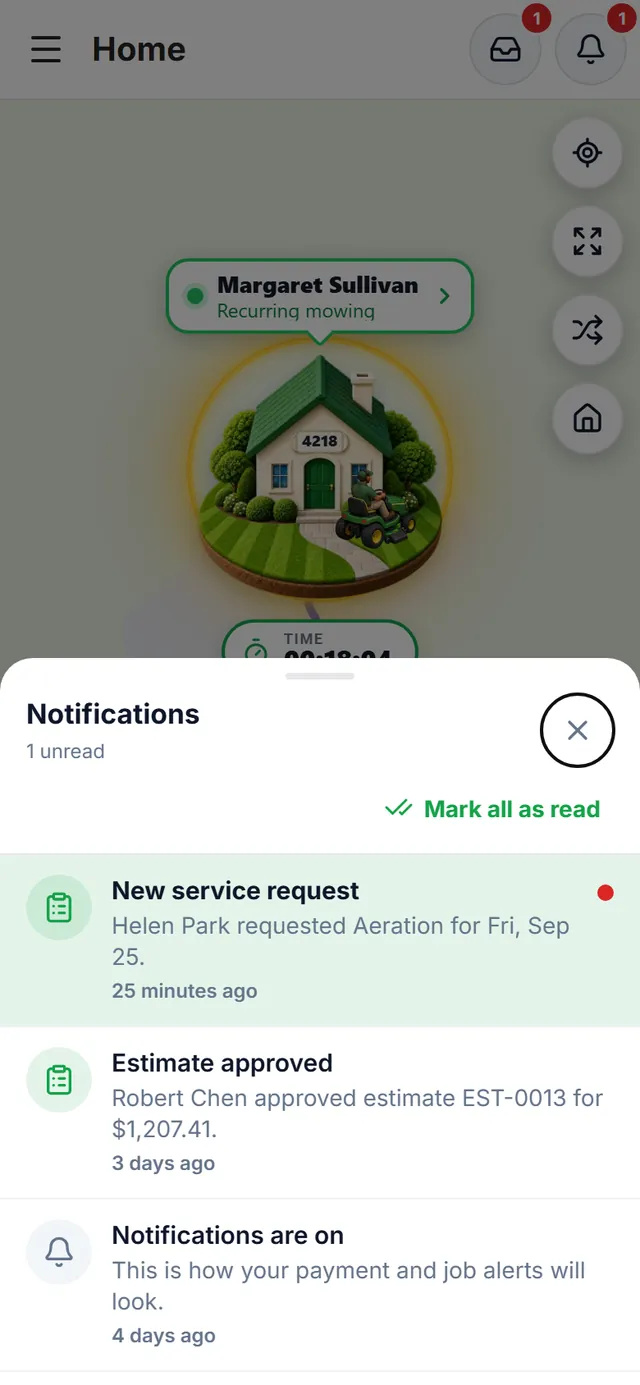
The bell gathers your notifications: service requests coming from the portal, estimates your clients approve and more. You can also get them as notifications on your phone.

  • Service requests from the portal, to approve or reject
  • Mark all as read
  • Short on-screen notices when you save or complete something
Owner notifications: an unread new service request, an estimate approved by the client and the notifications-on message

Houses & services

Each service with its own house

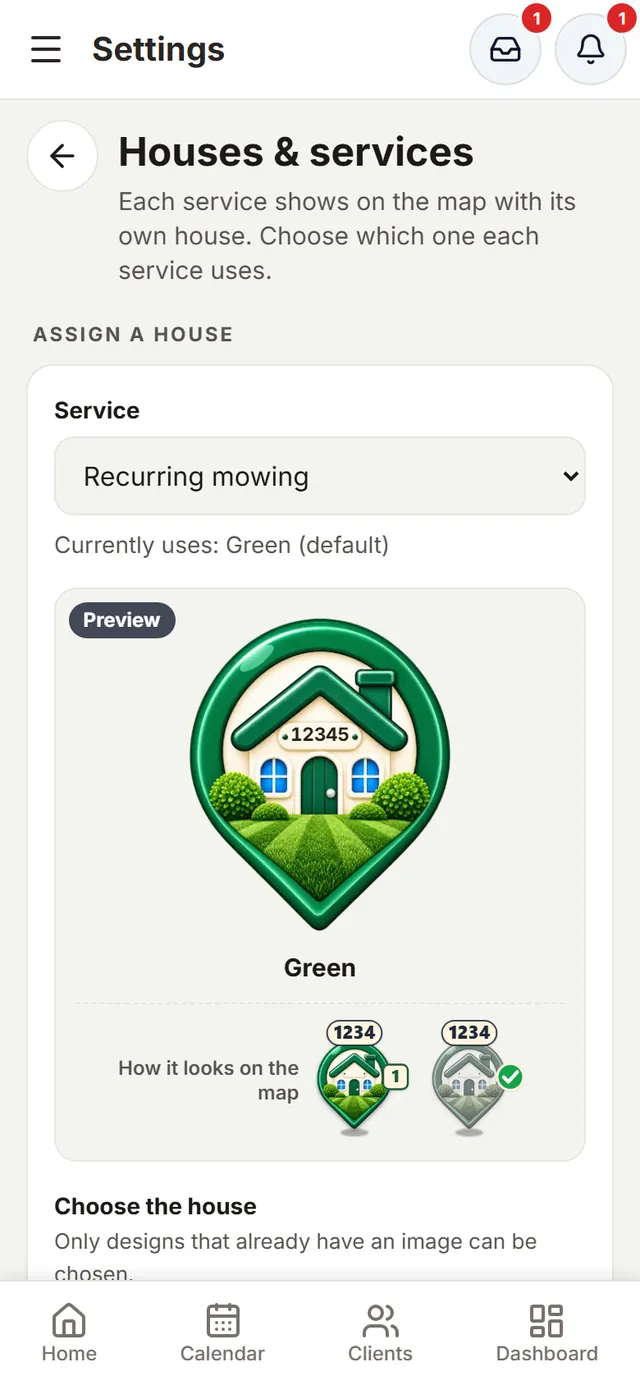
In Settings → Houses & services you choose which house stands for each service on the map, so you can tell a mow from a cleanup or an aeration at a glance. There’s also a dark mode.

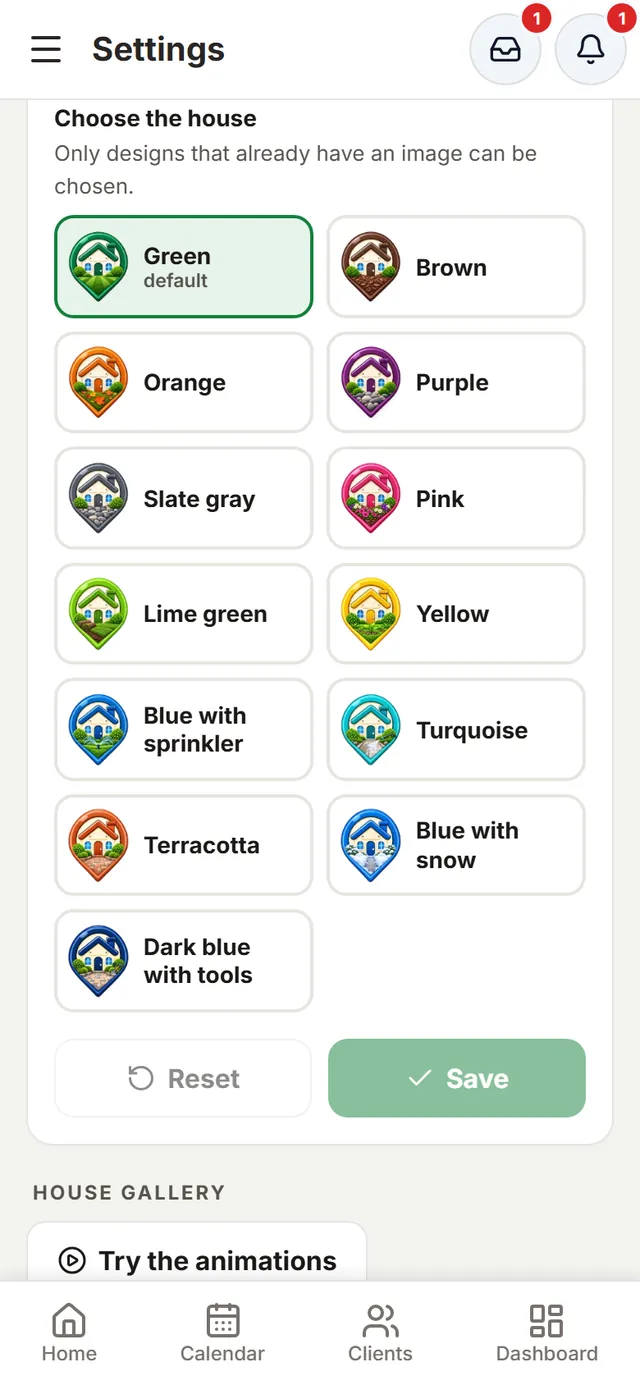
  • A gallery of house designs
  • A preview of how it looks pending and finished
  • Light or dark theme, in Settings
Houses & services: pick a service and the house that represents it on the map, with a preview of how it looks pending and finished
The house design gallery: green, brown, orange, purple, slate gray, pink, lime green, yellow, blue with sprinkler, turquoise, terracotta and more

Client portal

Clients check their account without calling you

Each client signs in to the portal with their phone number and sees their balance, next visit and service history, in English or Spanish. From there they can also request a service, send you a message or leave you a review.

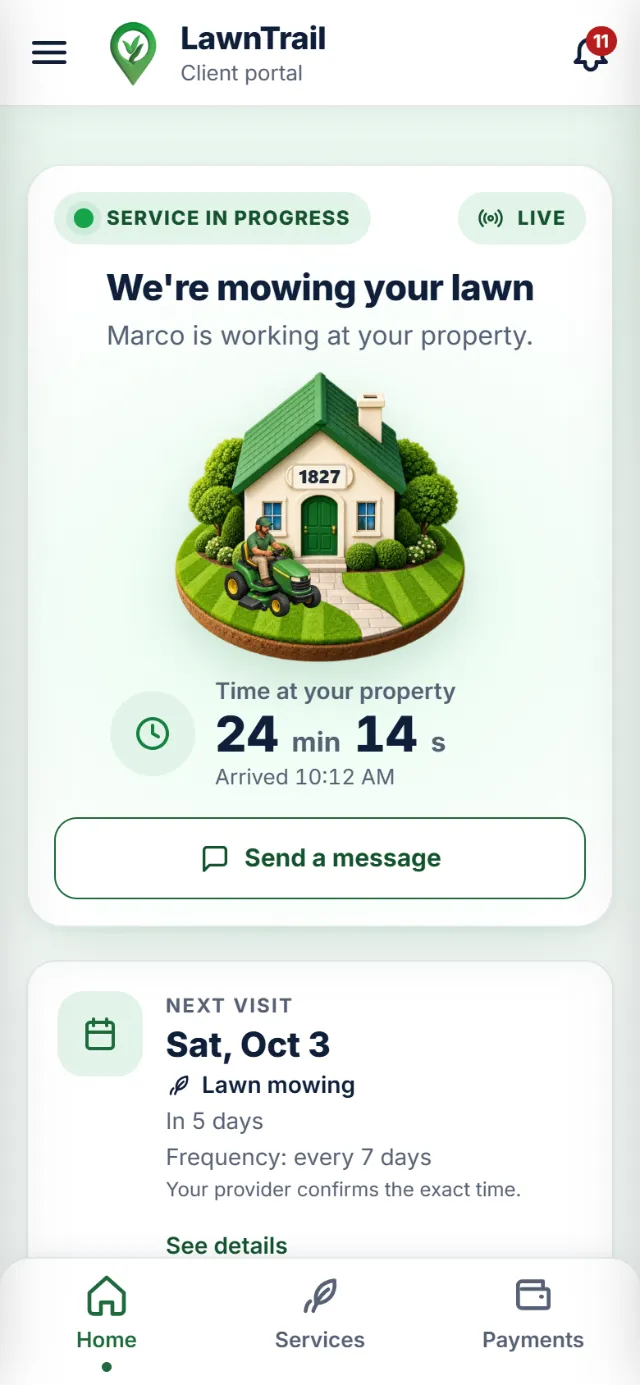
Client portal, Home: “Service in progress” card tagged “Live”, “We’re mowing your lawn” and “Marco is working at your property”, the house with the animated gardener on his mower, time at your property (24 min 14 s), arrival time and the “Send a message” button; below, the next visit
Live: when you arrive, your client sees who is working and how long they’ve been at the property.
  • Live service: when you arrive, they see “Service in progress”, who is working and the time at their property
  • Completed services with arrival, departure and duration
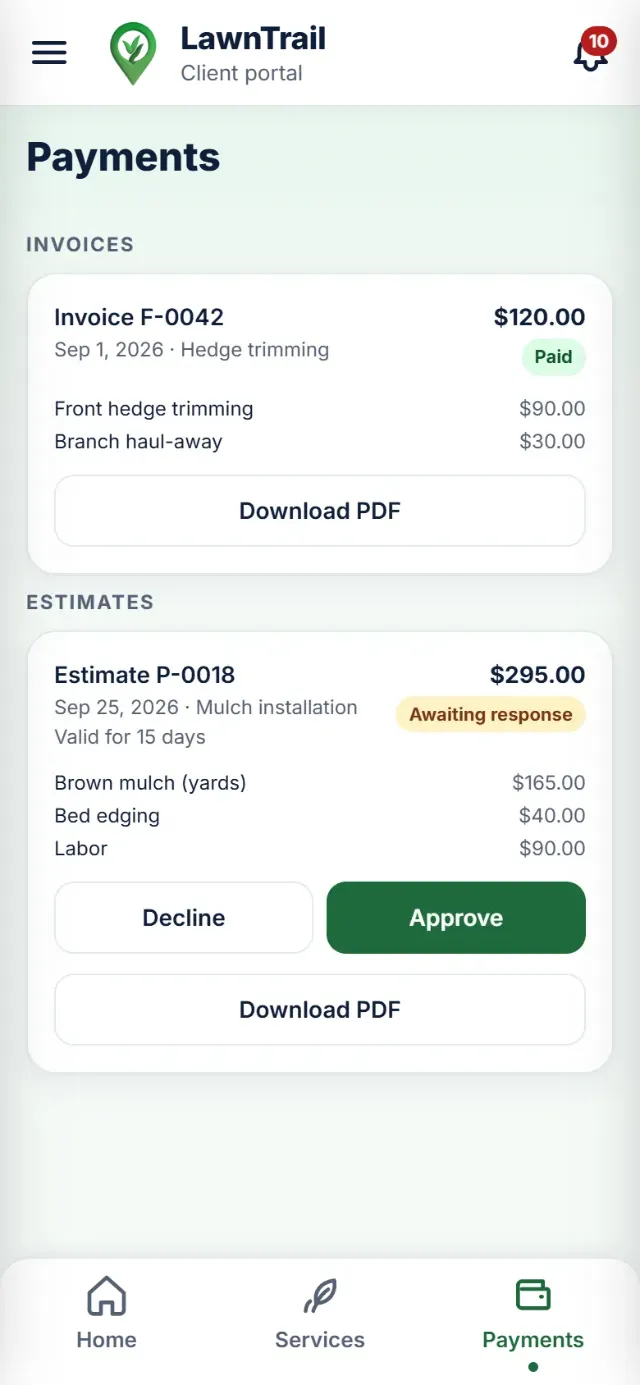
  • Invoices and estimates: they approve or reject them and download the PDF
  • Recorded payments, with PDF receipts
Client portal, Payments section: invoice F-0042 for $120.00, paid, and estimate P-0018 for $295.00, awaiting response, with their line items and the “Decline”, “Approve” and “Download PDF” buttons
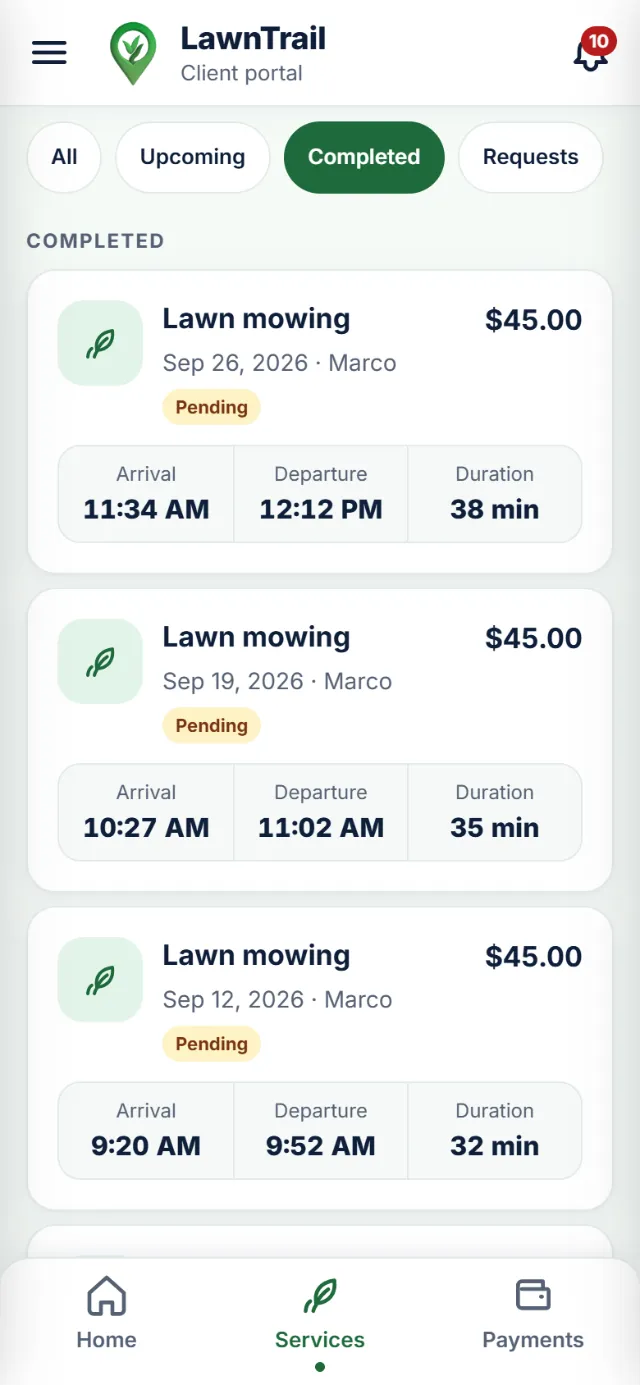
Client portal, Services → Completed: each lawn mowing with its date, the worker, the amount, and the arrival, departure and duration

In developmentCard payments from the portal

A workday with LawnTrail

Here’s what a normal day looks like, from the first stop to wrap-up.

  1. Morning

    Check the day

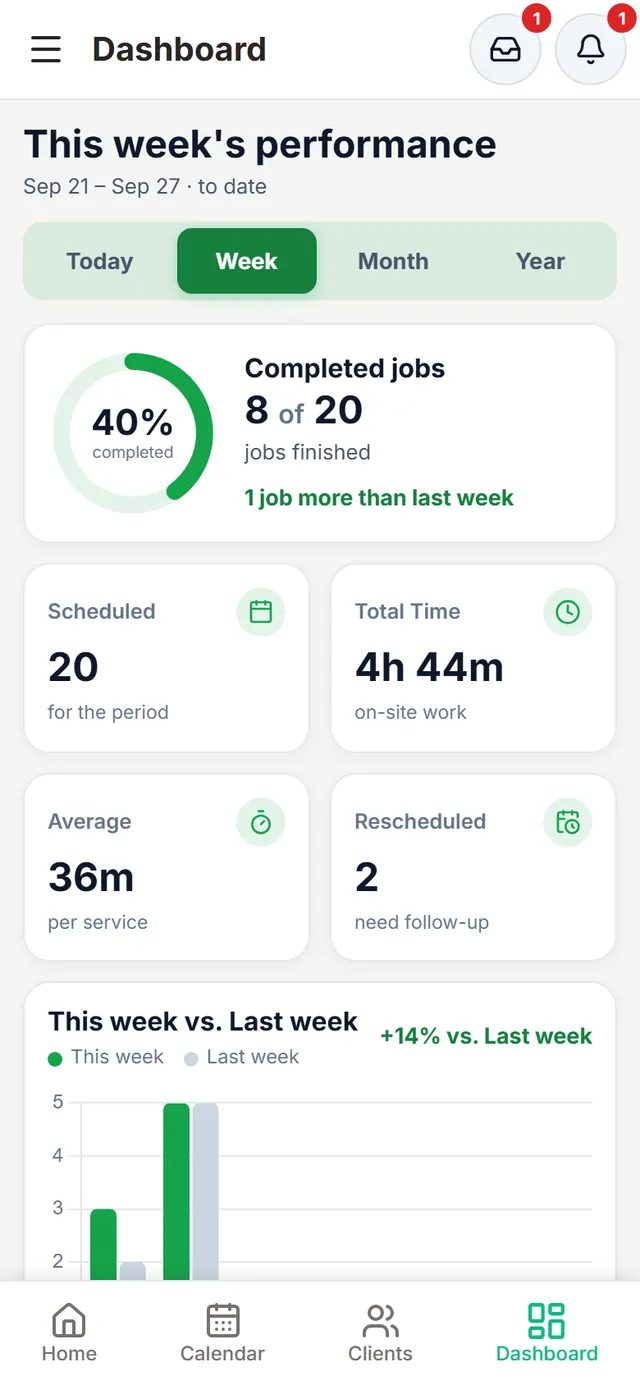
    The Dashboard shows the week and what’s on for today before you get in the truck.

    Dashboard, weekly performance: 8 of 20 jobs completed, 20 scheduled, 4 h 44 min total time, 36 min average per service and 2 rescheduled
  2. Route

    Head out with a clear order

    The map numbers your stops and takes you to each address.

    LawnTrail Home: the map with today’s route. Pending houses carry their stop number in a small square; finished ones are dimmed with a green check (owes) or an orange check (paid). Below, 3 of 7 done, $105 collected and $45 to collect, and the next stop: Margaret Sullivan
  3. Arrival

    Swipe when you arrive

    The arrival time is saved, even with a bad signal, and the timer starts.

    Job in progress: Margaret Sullivan’s house with the animated gardener mowing, the timer past 24 minutes and the red “Swipe to Log Departure” control
  4. Departure

    Swipe when you’re done

    LawnTrail works out the time worked and the house dims on the map.

    After finishing: house 4218 is dimmed with the orange paid check, the next stop is marked on the map and the bar moves to 4 of 7 done and $170 collected
  5. Payment

    Record the payment

    With its method and amount: the client’s balance updates right away.

    Finances, Activity tab: search, filters by method and period, and today’s and yesterday’s payments with client and method: detected Zelle ones tagged “Automatically verified” and hand-entered ones tagged “Manual”
  6. Wrap-up

    Know how the day went

    What got done, what got paid and what’s still open.

    Finances, Summary tab: $3,181.90 received this month of $3,880.84 charged, with the month’s progress bar (82%)

Installs on your phone, no app store

LawnTrail is an installable web app: open it in your browser and add it to your home screen. It opens full screen, like any other app.

  • Android (Chrome)

    Open lawntrail.web.app, tap the menu and choose “Install app” or “Add to Home screen”.

  • iPhone (Safari)

    Open lawntrail.web.app, tap Share, then “Add to Home Screen”.

  • Computer

    It also works in your computer’s browser, with the same account and the same data.

And on your computer

LawnTrail on a computer: today’s route on the map, with Margaret Sullivan’s job in progress, the timer and the swipe control to log departure
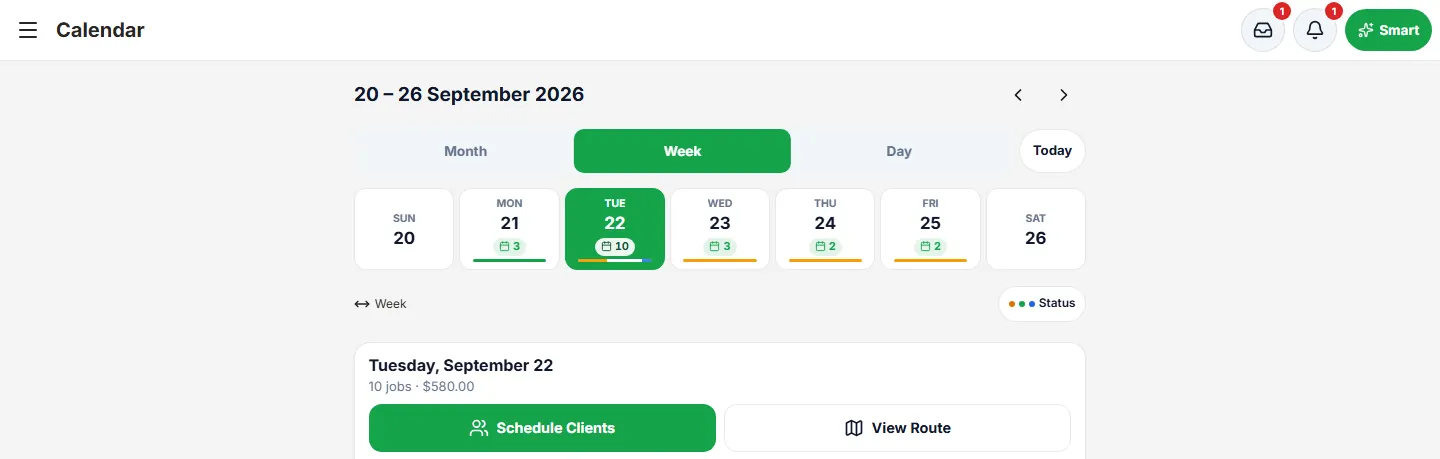
The calendar on a computer: the week with the job count per day and Tuesday’s schedule

Owner and worker

The same route, different information

The worker sees their route and logs arrival, departure and their workday. Amounts and client information stay with the owner.

Owner

Today’s route as the owner sees it: 3 of 7 done, $105 collected and $45 to collect, with the amount for each stop

Done, collected and to collect, with the amount for each stop.

Worker

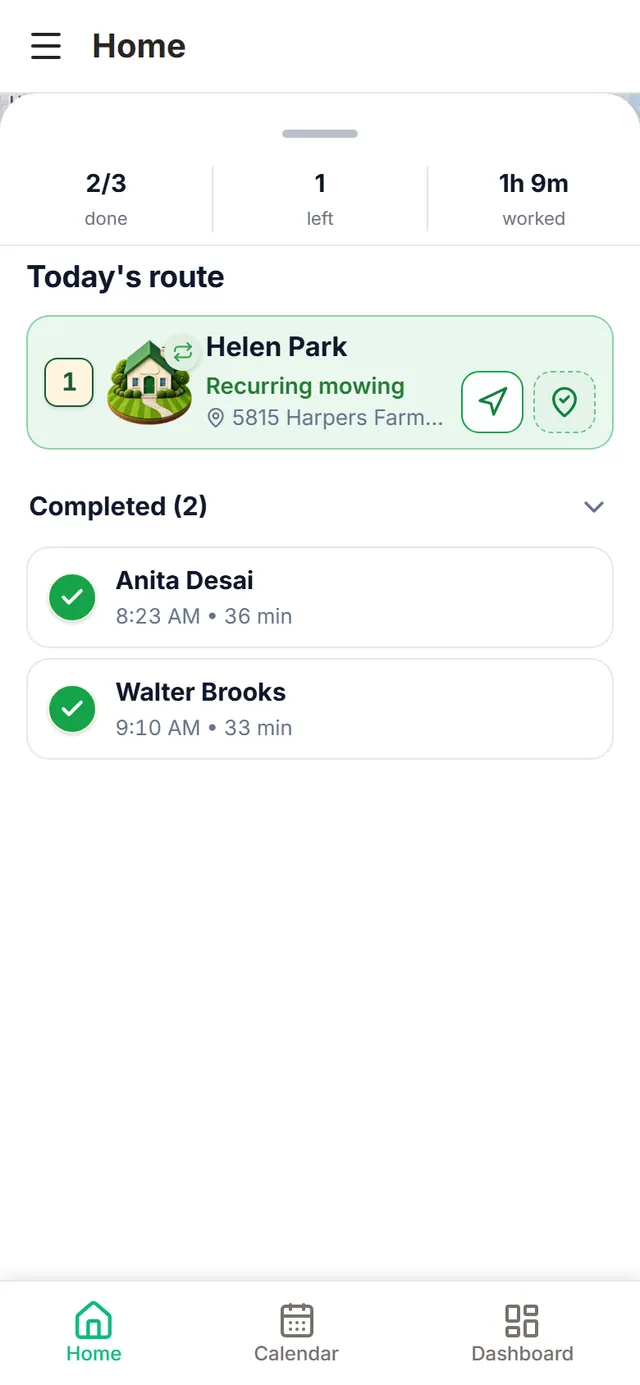
Today’s route as worker Luis Ortega sees it: 2 of 3 done, 1 left and 1 h 9 min worked, with no amounts

Done, left and time worked, with no amounts or balances.

Where the role is set

In My team you tap the worker → Employee information → Access tab → Worker’s Role. With the Worker role (and also Supervisor) they get an assigned calendar, logging work time and completing jobs; no client administration, finances, estimates and invoices, rates, costs and profit, or other employees. Admins get everything.

Luis Ortega’s Access tab: Worker role and what it does and doesn’t include

Payments

How you get paid with LawnTrail

What works today for everyone, what’s in pilot and what’s coming. Each block shows its status.

Available now

Record the payments you already received

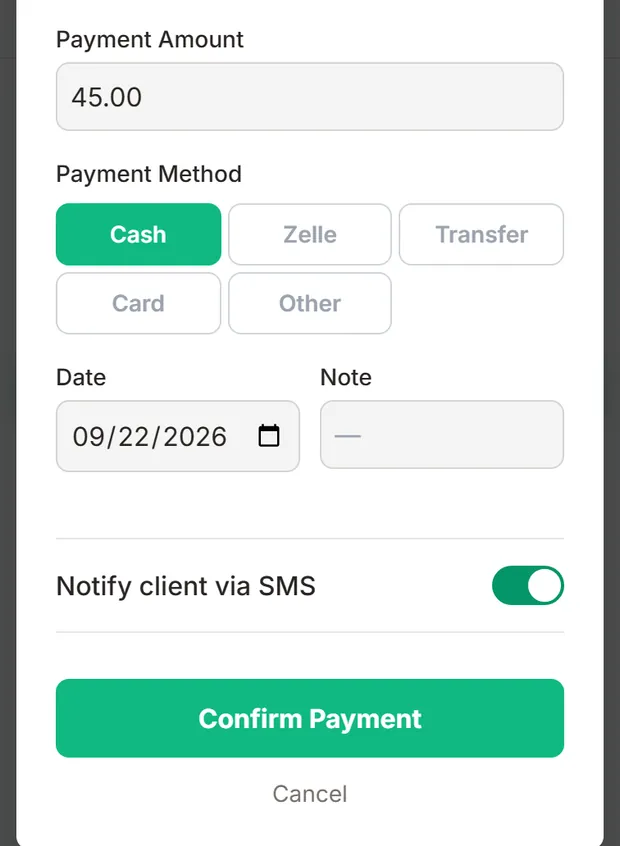
Record by hand the payments you receive — cash, Zelle, transfer, card or other — with date and note, from the client record or when you finish the job; the balance updates instantly and your client sees the payment and its PDF receipt in the portal.

These are payments your business already collected on its own: LawnTrail doesn’t move the money or process those payments.

Record payment: amount 45.00, method (Cash, Zelle, Transfer, Card or Other), date, note and client notice
Client portal, Services → Completed: each lawn mowing with its date, the worker, the amount, and the arrival, departure and duration
Pilot

Automatic Zelle available in pilot

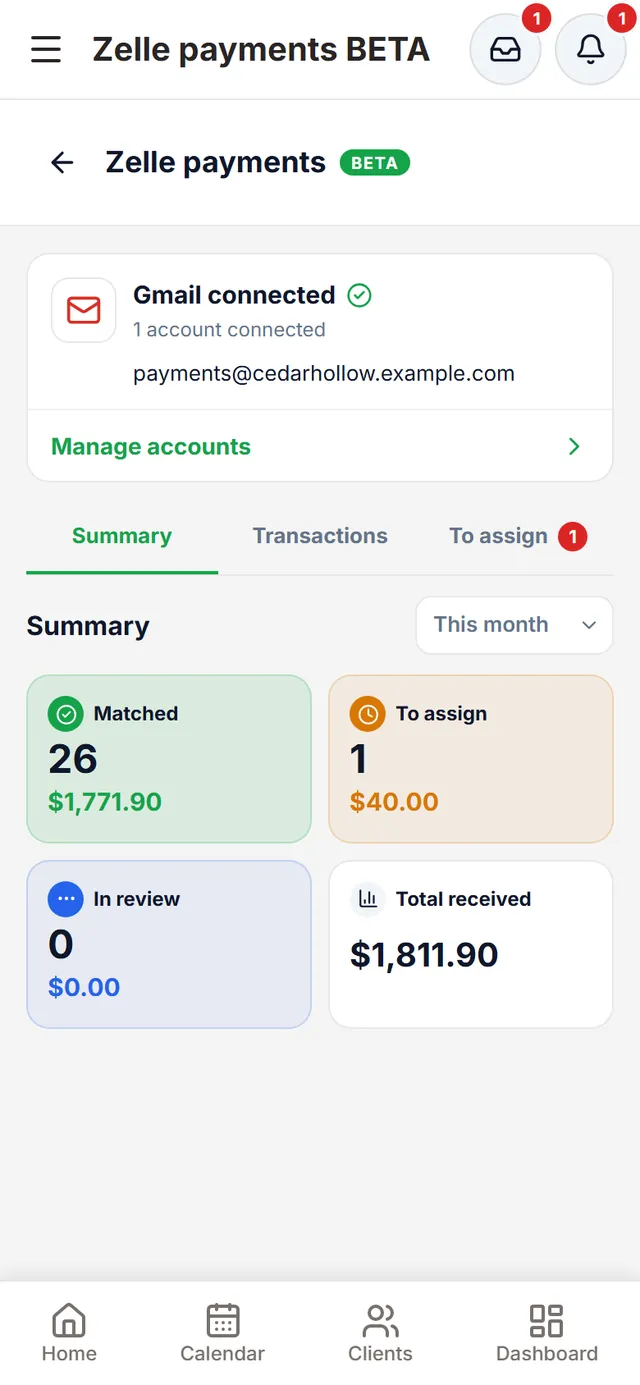
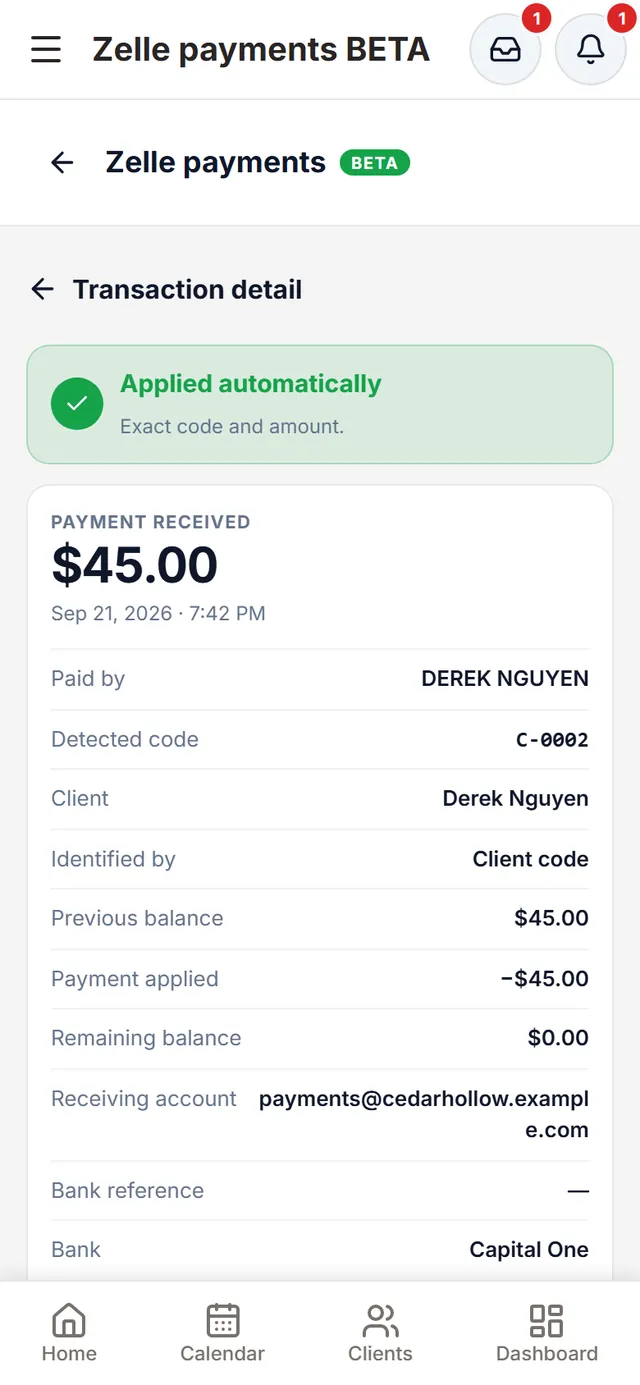
Connect the email where you get your Zelle notices and LawnTrail detects every payment. If your client writes their code (for example, C-0001) in the memo, the payment is applied to their balance automatically; if not, it stays pending and no balance changes until you record it. Today it’s available to a small group of businesses and has been tested with Capital One notices. In the meantime, any business can record its Zelle payments by hand in seconds.

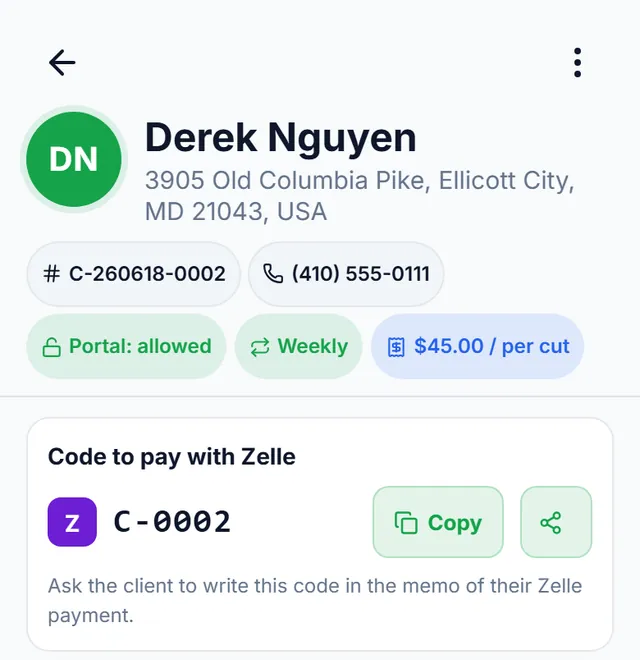
Each client has their code on their record, ready to copy and share. In Finances → Activity, detected payments are tagged “Automatically verified” and the ones you enter yourself, “Manual”.

Zelle payments (beta): Gmail connected with one account and the month’s summary: 26 matched, 1 to assign, 0 in review and the total received
Detail of a payment applied automatically: $45.00 from Derek Nguyen, detected code C-0002, identified by the client code, previous balance $45.00, payment applied −$45.00 and remaining balance $0.00
Derek Nguyen’s record with the “Code to pay with Zelle” card: C-0002, with buttons to copy and share
Finances → Activity: Zelle payments tagged “Automatically verified” next to cash payments tagged “Manual”
In development

Card payments and autopay

We’re building card payments from the client portal. It doesn’t work with real money yet. The idea:

  1. The client adds their card in the portal

    The card is stored and processed by the payment provider, not by LawnTrail.

  2. They choose how to pay

    Pay each service whenever they want, or authorize an automatic charge, depending on the options the product finally supports.

  3. They get their receipt

    Every payment stays in their history with its receipt.

Concept preview — not a screenshot of the app

Concept preview — not a screenshot of the app Schematic illustration of the concept: a phone with a generic card with no details, two payment options and a receipt. Not a screenshot of the app. Saved card Pay each service Automatic charge Receipt Concept preview — not a screenshot of the app

Plans

Every plan includes the daily route, Smart Schedule, clients, estimates and invoices, Finances and the client portal. What changes is the price, how many users, workers and active clients you can have, and the fee per card payment.

Plan comparison: features in rows, plans in columns
FeatureBasicProBusiness
Price$29.99 /moor $299 a year$69.99 /moor $699 a year$129.99 /moor $1,299 a year
What changes between plans
Users (includes the owner)1Up to 5Up to 15
WorkersNoUp to 4Up to 14
Active clientsUp to 150Up to 500Unlimited
LawnTrail fee per card payment2%0.5%0.25%
Daily operations
Today’s route and routes on the mapIncludedOn every plan
Schedule and Smart ScheduleIncludedOn every plan
Clients
Client records with balance and historyIncludedOn every plan
Import clients (Excel, CSV, PDF, photo or list)IncludedOn every plan
Documents
Estimates and invoicesIncludedOn every plan
Finances
FinancesIncludedOn every plan
Manual payment recordingIncludedOn every plan
Portal
Client portalIncludedOn every plan
Team
Team roles (within the user limit)NoIncludedIncluded

Basic

$29.99 /moor $299 a year

Users (includes the owner)
1
Workers
No
Active clients
Up to 150
LawnTrail fee per card payment
2%
Team roles (within the user limit)
No

Included on every plan

  • Today’s route and routes on the map
  • Schedule and Smart Schedule
  • Client records with balance and history
  • Import clients (Excel, CSV, PDF, photo or list)
  • Estimates and invoices
  • Finances
  • Manual payment recording
  • Client portal

What changes between plans

  • Users (includes the owner): Basic 1 · Pro Up to 5 · Business Up to 15
  • Workers: Basic No · Pro Up to 4 · Business Up to 14
  • Active clients: Basic Up to 150 · Pro Up to 500 · Business Unlimited
  • LawnTrail fee per card payment: Basic 2% · Pro 0.5% · Business 0.25%
  • Team roles (within the user limit): Basic No · Pro Included · Business Included

Create an account and choose a plan

Prices in USD. You create your account in the app, choose your plan in step 3 of sign-up or later in “My Subscription”, and pay with Stripe. Limits apply per business and only active clients count. The fee applies to card payments from the client portal, which are in development.

Frequently asked questions

What languages is LawnTrail in?

English and Spanish. Each person picks their language in Settings, and the client portal is in both languages too.

What do the house colors on the map mean?

A house in color with its number in a small square is a pending stop. When you finish it, it dims: with a green check if that job isn’t paid yet (or is partly paid) and an orange check if it’s fully paid. The house color depends on the service, and you pick it in Settings → Houses & services.

Can I work several houses on the same street at once?

Yes. When you reach a street with several houses on your route, the app shows “Nearby clients”: pick the houses, start the group with a swipe, tap “Finish this house” on each one and at the end confirm each house’s payment.

Can I bring my clients over from Excel?

Yes. In Clients, tap “Import”: you can upload an Excel file (.xlsx), a CSV, a PDF or an image (JPG or PNG), take a photo of a list or paste it, and there’s an Excel template to download. The file is read on your phone, not uploaded to any server. Before saving you review every row: the ready ones, the ones to fix and possible duplicates, which are left unselected. It only creates clients: no visits, charges, balances or payments. Anything read from a photo or a scanned PDF needs to be checked detail by detail. Limits: 10 MB per file, PDFs up to 20 pages and 500 clients per import.

Can my workers use it?

Yes. From My team you invite each worker by email; they set a password and sign in with their own account. On their record’s “Access” tab you give them a role — Worker, Supervisor or Admin — and the app shows what it includes: the Worker role gets an assigned calendar, logging work time and completing jobs, with no client administration, finances or rates. Their route shows done, left and time worked, with no amounts.

Do I have to download it from an app store?

No. It opens in the browser at lawntrail.web.app and you can install it on your phone’s home screen: on Android from the Chrome menu, on iPhone from Share → “Add to Home Screen”.

Does it work without a signal?

Partly. Arriving at a job is saved without a signal and syncs when you’re back online; if the signal drops right when you record a finished job’s payment, the payment waits and is recorded when you reconnect. Everything else needs internet.

What does my client see in the portal?

They go to lawntrail-clientes.web.app, sign in with their phone number (they get a code by text message) and see their balance, their next visit, completed visits with arrival, departure and duration, their invoices and estimates (they can approve or reject them and download the PDF) and recorded payments. While you’re working at their property, they see it live. They can also request services and send you messages. If you don’t want a client to have access, block it from their client record.

Can I make estimates and invoices as PDF?

Yes. In Jobs & Billing you create estimates, turn them into jobs, invoice them and generate the PDF of the estimate, the invoice or the receipt, in English or Spanish.

How do I get started?

Open LawnTrail and, below the sign-in form, tap “Create an account”. A four-step wizard guides you through sign-up: your account, your business details, your plan (in step 3) and confirmation. Plan terms are in the Subscription Terms.

What happens to my data?

Your data and your clients’ data are used to provide the service, and each business only sees its own. The details are in the Privacy Policy; if you have questions, write to ing.darinsonmartinez@gmail.com.

Plans and payments

Plans and pricing

How much does LawnTrail cost?

Basic: $29.99 a month or $299 a year. Pro: $69.99 a month or $699 a year. Business: $129.99 a month or $1,299 a year. Prices in USD; you pay with Stripe.

What changes between plans?

The price, how many users, workers and active clients you can have, and the fee per card payment. The daily route, Smart Schedule, clients, estimates and invoices, Finances and the client portal are on every plan.

Zelle

How do I record a Zelle payment?

Record the Zelle payments you receive, with date and note, and your client’s balance updates instantly. It’s a record of a payment you already received: LawnTrail doesn’t move the money or check it against the bank.

Does LawnTrail detect my Zelle payments automatically?

Yes, in pilot. You connect the email where you get your Zelle notices and LawnTrail detects every payment. If your client writes their code (for example, C-0001) in the memo, the payment is applied to their balance automatically; if not, it stays pending and no balance changes until you record it. Today it’s available to a small group of businesses and has been tested with Capital One notices. In the meantime, any business can record its Zelle payments by hand in seconds.

Where is each client’s code?

On their record, in the “Code to pay with Zelle” card, with buttons to copy and share it. Your client writes it in the Zelle memo.

Card payments and autopay

Can I take card payments?

Not yet: card payments from the client portal are in development. Today you can record a card payment you collected on your own.

Will there be automatic payments?

They’re in development, together with card payments. The card will be stored by the payment provider, not by LawnTrail.

Receipts

Does my client get a receipt?

Yes. In the portal they see their balance and payment history, and download the PDF receipt.

Start organizing your business today

Open LawnTrail and tap “Create an account” below the sign-in form. Already have an account? Sign in.

Zoomed screenshot

Drag to move around. Wheel, pinch or + and − to zoom; arrow keys to pan; Escape to close.